


Make your page and share it
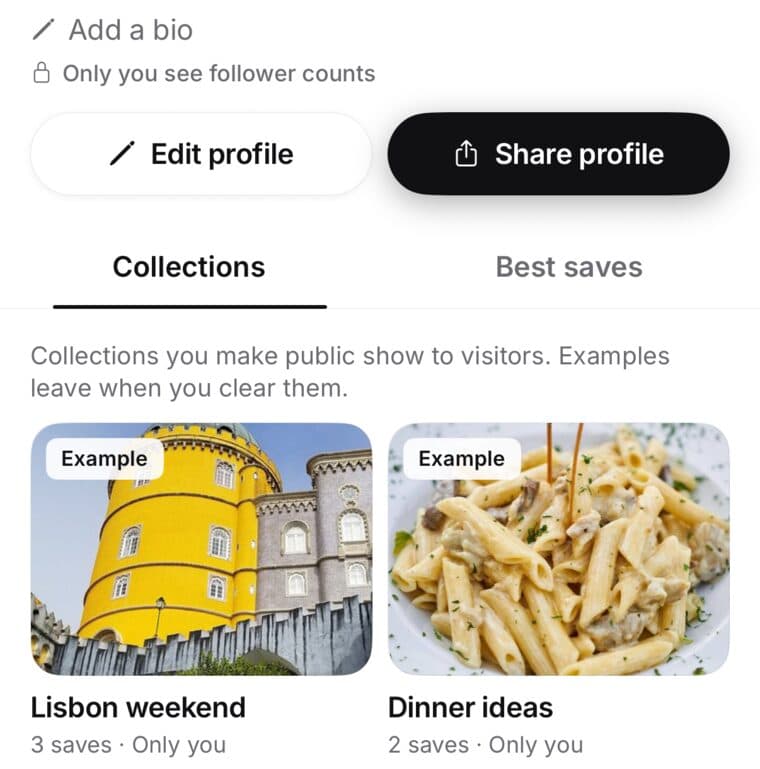
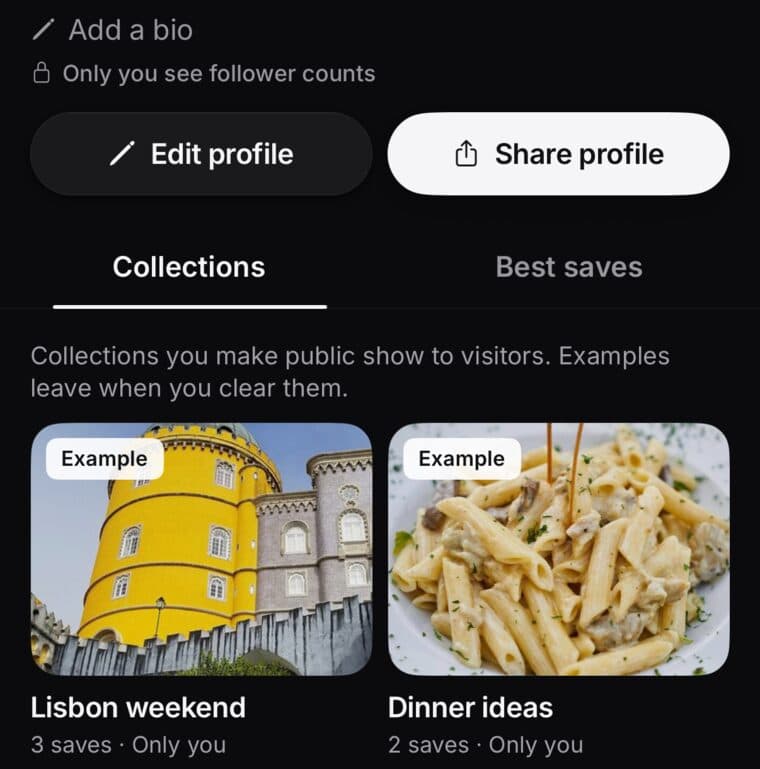
Tap Profile at the bottom. That's your page: your photo, name, bio, collections and best saves. Only you can see it until you make it Public.
Tap Share profile to send your saveditapp.com/@username link or show a QR code. People can follow you and save what you pin.
Updated October 19, 2026
Set it up
- Name, @username or bio: tap it on your page to change it. A bio can be up to 140 characters.
- Photo: tap the camera on your photo.
- Cover, pins and which collections show: tap Edit profile. Changes save as you go, so tap Done when you're finished.
Pin your best saves
- On your page, open Best saves and tap Pin a save.
- Choose the saves you want people to see first.
- To reorder them, tap Edit profile and drag. Tap × to unpin one, with Undo.
You can pin up to 6 saves and collections in all. Pinning a private collection makes it public.
Public or Only you
The chip next to your name says Public or Only you. Tap it to change who can see your page.
- Public: anyone with your saveditapp.com/@username link. People can follow you and save what you pin.
- Only you: your page and pins are hidden. Nothing is deleted.
- Only public collections show on your page. Private and shared collections never do.
Share your page
- Tap Share profile.
- Tap Copy for the link, Share… to send it in another app, or Show QR for a code people can scan.
If your page is set to Only you, SavedIt asks first. Choose Turn on and share to make it public, or Not now. It may ask you to pick your @username before it goes public.
Followers and views
Only you see how many people follow you. Your page also shows you how many times it was seen this month.
Someone else's page
Tap Follow to follow them, or Share to send their page to someone. The ⋯ key at the top lets you Report the page or Block them.