
SavedIt / Guides / iPhone
How to organize screenshots on iPhone, and find them again
In Photos, tap Collections, then Media Types, then Screenshots to see them all, and put the ones you need in an album or give them a keyword. Share the ones that matter to SavedIt (our app), with your links and posts, and find them by your note or what they show. It's free on your phone or laptop.
Checked in nine pages of Apple's iPhone User Guide for iOS 27 on November 27, 2026. Each step and fact links its page.
How do you organize screenshots in Photos?
These are the steps in the Photos app on iOS 27, from Apple's own guide.
See all your screenshots
Tap Photos, then Collections, then Media Types, then Screenshots.
Open Photos, tap Collections, scroll down and tap Media Types, then Screenshots. Every screenshot is in one place. Add Screenshots to Pinned to reach it faster.Source 1
Put the ones you need in an album
Tap Collections, then Albums, then +, then New Album.
Tap Collections, then Albums, then the plus, then New Album. Name it, like Receipts or Outfits, pick the screenshots and tap Create.Source 2
Give them a keyword
Tap Screenshot, then Swipe up, then Add Keywords.
Open a screenshot and swipe up. Tap Add Keywords, type a word like "wifi" or "tickets" and tap Done. Search for that word later to bring them all back.Source 3
Search the words in them
Tap Search.
Tap the search button at the bottom right and type something you remember from the picture, like an email address or a phone number.Source 4
Hide them from your library
Tap Sort and Filter, then View Options, then Screenshots.
Tap the Sort and Filter button, then View Options, then Screenshots. They stop showing between your photos. Tap it again to show them.Source 5
What should you know about screenshots on iPhone?
- They have their own filter
- In iOS 27, the Media Types filter shows only photos, videos or screenshots in your library, and Media Types in Collections keeps them in one place.Source 5,Source 1
- Search reads the text
- Photos search finds text in your pictures, like an email address or a phone number.Source 4
- Describing needs a newer iPhone
- Searching by describing a picture uses Apple Intelligence, on iPhone 15 Pro, iPhone 15 Pro Max or iPhone 16 and later. Apple says it isn't in every language or region, and usage limits may apply.Source 4
- A screenshot can become an event
- On those iPhones, the screenshot buttons also open Visual Intelligence. Search for what's on screen, ask about it, add it to Calendar or summarize its text, then delete the screenshot or keep it.Source 6
- Live Text picks out the words
- Open a screenshot in Photos, tap the Detect Text button, then touch and hold the text to use it. Apple says Live Text isn't in every region or language.Source 7
- Receipts and QR codes sort themselves
- Photos also groups pictures by what's in them under Collections, then Utilities: receipts, QR codes, handwriting, identity documents and illustrations.Source 8
- Albums follow you
- With iCloud Photos, your albums are stored in iCloud and show on every device signed in to the same Apple Account.Source 2
- Two kinds of Hide
- Hiding screenshots in View Options only takes them out of your library view; tap it again and they're back. More, then Hide is different: it moves a picture to the Hidden collection, which is locked by default, and it shows nowhere else.Source 5,Source 9
- Deleted ones wait 30 days
- Deleted pictures stay in Recently Deleted for 30 days. With iCloud Photos, deleting a screenshot removes it from all your devices.Source 9
Our read
Photos already does the hard part. Its search finds the words in a screenshot, and it sorts receipts and QR codes on its own.Source 4,Source 8 What it can't know is why you took one. An album name or a keyword is how you tell it.
Our read
So keep the few screenshots that matter on purpose, and let the rest go.
Things that help
Our advice, from the facts above.
Clear them out once a month: open Media Types, Screenshots, tap Select and delete the ones you're done with. They wait 30 days in case you were wrong.Source 1,Source 9
Give a keyword to anything you'll need again, like "receipts 2026". You can type several keywords at once, separated by spaces.Source 3
Screenshotting a date? On a newer iPhone, tap Add to Calendar in the view that opens, then close it to delete the screenshot.Source 6
Hide screenshots with View Options, not with More, Hide, so they stay easy to reach.Source 5,Source 9
Questions people ask
- Where are screenshots on iPhone?
- In Photos. Tap Collections, then Media Types, then Screenshots. They also show in your library unless you hide them.
- Can I search the text in a screenshot on iPhone?
- Yes. In Photos, tap the search button and type a word from the picture, like an email address or a phone number.
- How do I hide screenshots from my photo library?
- In Photos, tap the Sort and Filter button, then View Options, then Screenshots. Tap it again to show them.
- Does SavedIt read the text in my screenshots?
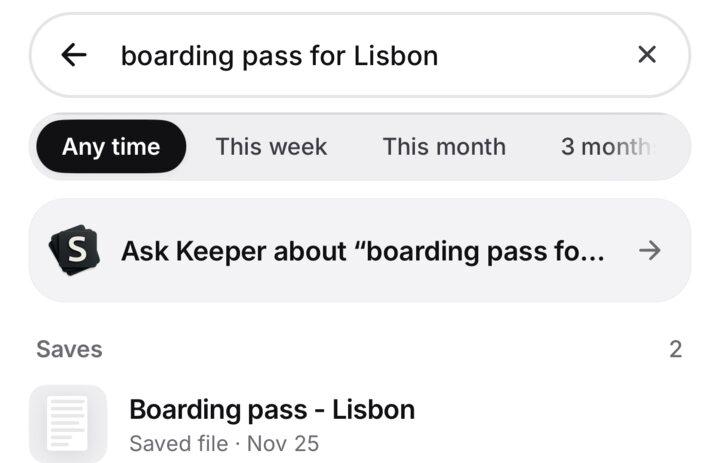
- No. SavedIt (our app) adds a short description of what a screenshot shows, like a boarding pass, but it doesn't read the text in it. Add a note with the words you'll search for.
- Can I save several screenshots to SavedIt at once?
- No. With several selected, SavedIt (our app) doesn't show in the Share menu, so share them one at a time.
- How many screenshots can I keep in SavedIt?
- SavedIt (our app) Free accounts hold 1 GB of photos, screenshots and PDFs. SavedIt Plus, the paid plan, holds 10 GB.
Sources
Numbered as the guide cites them.
- 1
Apple iPhone User Guide. “Locate photos and videos by media type on iPhone.” iOS 27 guide, read November 27, 2026. support.apple.com (opens in a new tab)
- 2
Apple iPhone User Guide. “Create and work with photo albums on iPhone.” iOS 27 guide, read November 27, 2026. support.apple.com (opens in a new tab)
- 3
Apple iPhone User Guide. “Add keywords to photos and videos on iPhone.” iOS 27 guide, read November 27, 2026. support.apple.com (opens in a new tab)
- 4
Apple iPhone User Guide. “Search for photos and videos on iPhone.” iOS 27 guide, read November 27, 2026. support.apple.com (opens in a new tab)
- 5
Apple iPhone User Guide. “Sort and filter the photo library on iPhone.” iOS 27 guide, read November 27, 2026. support.apple.com (opens in a new tab)
- 6
Apple iPhone User Guide. “Learn about what’s on your iPhone screen with Visual Intelligence.” iOS 27 guide, read November 27, 2026. support.apple.com (opens in a new tab)
- 7
Apple iPhone User Guide. “Interact with content in a photo or video on iPhone.” iOS 27 guide, read November 27, 2026. support.apple.com (opens in a new tab)
- 8
Apple iPhone User Guide. “Find receipts, QR codes, recently edited photos, and more on iPhone.” iOS 27 guide, read November 27, 2026. support.apple.com (opens in a new tab)
- 9
Apple iPhone User Guide. “Delete or hide photos and videos on iPhone.” iOS 27 guide, read November 27, 2026. support.apple.com (opens in a new tab)