Find & organize
Set and manage reminders
Come back to a save or collection at the time you choose.
Updated September 27, 2026
Set a reminder for a save or collection
Open a save or collection, choose Remind, then pick a date and time. Add a short note if you want to remember what to do.
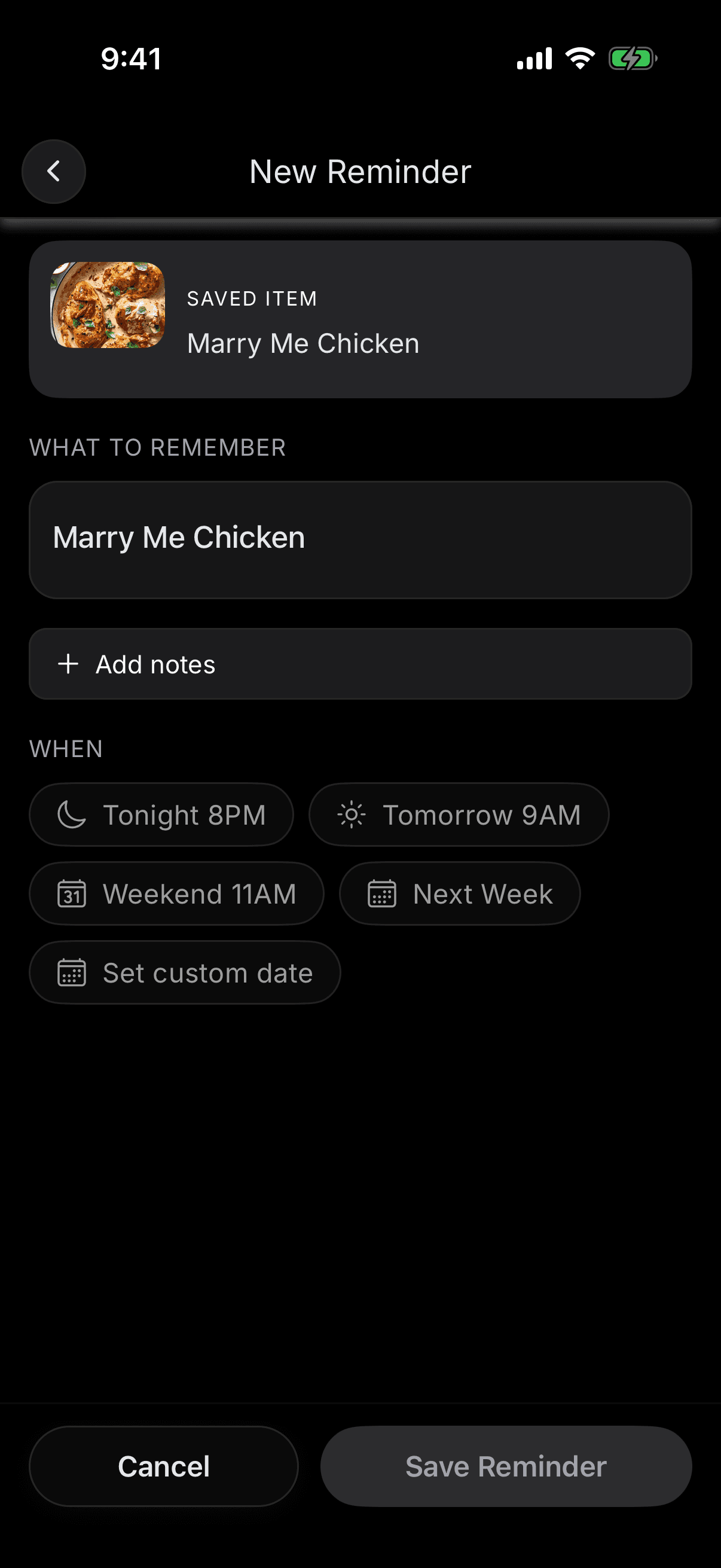
Check the reminder time
SavedIt uses the timezone stored with the reminder. If you travel or change your device timezone, check the time before relying on it.
Mark it done, snooze it, or cancel it
- Choose Done when you no longer need the reminder.
- Choose Snooze to move it to later today, tomorrow, or another time.
- Choose Cancel to stop a reminder without marking it done.
Choose account notifications on the web
Open Settings, then Notifications. Shared activity covers invites, updates, and comments in shared collections. Personalized notifications controls occasional reminders to revisit your saved content. Turning a category off does not delete your saves or reminders.
Your phone must also allow notifications for SavedIt. The website cannot check or change your phone's permission, and SavedIt does not send browser push notifications. You can still read shared activity in the web notification inbox.
If a choice says Unavailable, select Retry. SavedIt keeps your existing choice when a change cannot be saved.
To manage email choices, use the unsubscribe or manage preferences link in an email from SavedIt.
If a notification does not arrive
- Check that notifications are allowed for SavedIt in your phone settings.
- Open SavedIt and make sure you are signed in to the account that owns the reminder.
- Check the reminder time and timezone.
- Look in the Reminders screen to see whether it is upcoming, snoozed, done, or cancelled.