Save
When saving is not working
What to check when SavedIt is missing, a save looks unfinished, or Chrome or Firefox will not save.
Updated September 27, 2026
If SavedIt is missing on iPhone or iPad
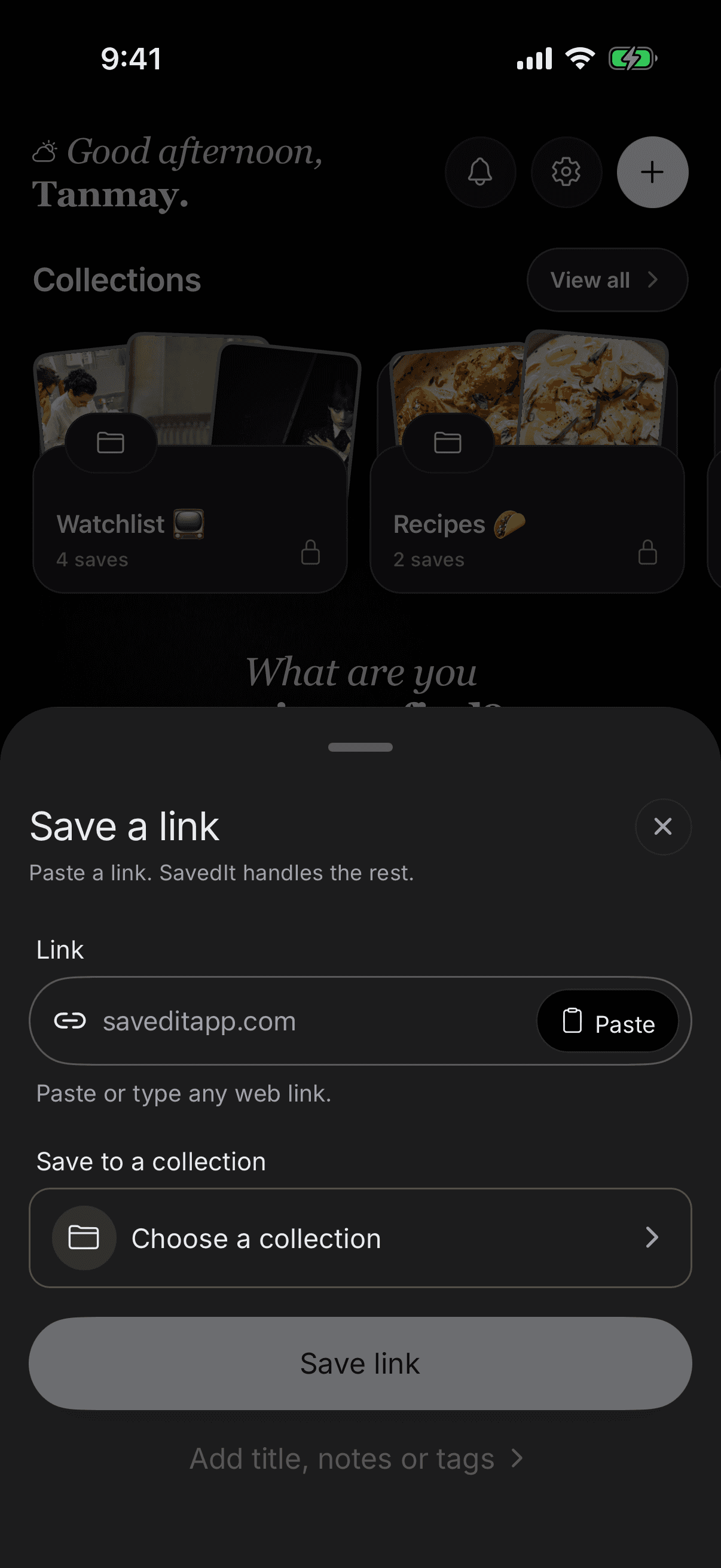
If you can copy the original link, open SavedIt and paste it with the plus button while you sort out the share menu.
- Open the share menu and scroll to the end of the app row.
- Tap More, then Edit.
- Find SavedIt and add it to your favourites.
- Close the share menu and try again.
If SavedIt is missing on Android
Open SavedIt once after installing it, then try the share menu again. If it is still missing, restart the phone and try sharing the original link again.
If a web save is waiting to sync
The dashboard banner shows how many saves are waiting. Choose Review saves to check them, or Retry now to try syncing saves that are ready.
If a link needs attention, check or update its web address, then choose Update and retry. If you can no longer add it to its collection, choose Save without collection to keep the link in your library.
If a save has no title or image
Give it a little time first. Some websites limit what SavedIt can read, especially private, paywalled, or sign-in-only pages. The original link is still saved when the preview is incomplete.
On the web, SavedIt shows an abstract cover when no page image is available. It is decorative artwork, not a picture from the saved page. Your title, source, and original link stay the same.
Edit the title and other details yourself if you want. If the same public website keeps failing, send us its name and a non-private example link.
If Chrome or Firefox will not save
- Open the extension and make sure you are signed in to the right SavedIt account.
- Refresh the page after installing or updating the extension.
- Try saving the page's normal web address instead of a browser settings page or a local file.
Still stuck
Email contact.savedit@gmail.com with the device and app you used, what you expected, and what happened. Do not send passwords, private notes, or private links.