

Instagram and TikTok
How to get the transcript of an Instagram Reel or TikTok
Short answer
Neither Instagram nor TikTok has a transcript you can read or copy: both show auto captions one line at a time as the video plays, and only when the video has them. For the full text, paste a public video's link into a free web transcript tool, or copy caption lines from a paused frame with Live Text on iPhone or Google Lens on Android.
Updated November 18, 2026 4 min read
What changed: Re-checked the caption steps in both apps, and added the free routes to the full text and the cases where each one fails.
The free ways, fastest first
Captions are the closest thing either app has to a transcript. Turn them on first: if a video has none, most other routes fail too.
TikTok: turn captions on
Tap Share, then Captions, then Show captions.
On the video, tap Share, scroll the bottom row to Captions, and turn Show captions on. It only works on videos that have captions.
Instagram: captions on every Reel
Tap Profile, then Menu, then Accessibility and translations, then Captions and translations.
Under Your app and media, open Accessibility and translations, then Captions and translations, and choose Always show closed captions. For one Reel: tap it, tap Options, then Closed captions. The caption language follows your phone's.
Copy a few lines from a paused frame
Tap Pause, then Screenshot, then Photos, then Select text.
With captions on, pause on the line you want and take a screenshot. On iPhone, open it in Photos, touch and hold a word, then Copy. On Android, open it in Google Photos, tap More, then Google Lens, and select the words. Good for a quote or a recipe step.
The whole text of one public video
Free web transcript tools take a link: copy it from the video's Share menu and paste it into the tool. They work on public videos only, and some stop after a couple of minutes.
What each route can't do
- Neither app has a copyable transcript
- Instagram's and TikTok's help pages describe captions you turn on or off, one line at a time. Neither describes a full transcript, or a way to copy caption text. Instagram also says captions may not be available to everyone.Source: Instagram Help: reels and video captions
- Creators can turn captions off
- TikTok lets the creator edit or remove auto captions after posting, and viewers can only show captions a post contains. On Instagram a creator can turn captions off for a Reel.Source: TikTok Support: accessibility for watching videos
- Some TikTok tools read TikTok's own captions
- TokScript says it can't get a transcript when the creator turned auto captions off. If one tool fails on a TikTok, a tool that listens to the audio may still work.Source: TokScript
- No speech, nothing to transcribe
- Captions and most transcript tools work from speech, so a Reel with only music and words on screen gives you nothing. Eden's tool says the same for music-only Reels.Source: Eden: Instagram transcript generator
- Private videos stay private
- Web tools can't open a video from a private account or a close friends post. Copying from a paused frame is the only free route there.Source: GetTheScript: Instagram transcript
Saving the video anyway? Its transcript in SavedIt
A web tool is the quickest way to the text of one video. If you're saving the video anyway, share it to SavedIt: it keeps the link and writes out what was said under the save. Free reads 12 videos a month, Plus 500.
Share the video to SavedIt
Tap Share, then SavedIt.
In Instagram, tap the paper plane on the Reel, then Share, then SavedIt. In TikTok, tap Share, then SavedIt. You stay in the app while it saves.
Open the transcript and copy it
Tap Open the save, then Transcript, then Copy.
The transcript shows what was said line by line, with times when the video has them. Copy takes the full text in one tap, ready for your notes or a translation app.
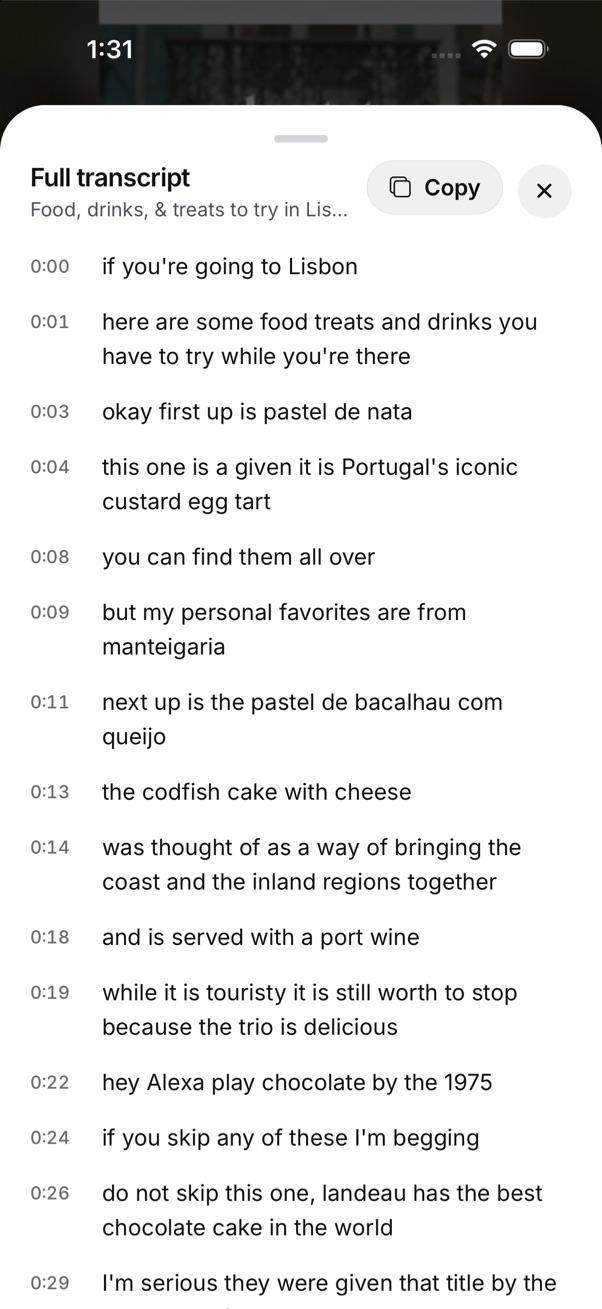
Every word said in a saved video, with a Copy button. No talking? It reads the words on screen
For a Reel with only music and text on screen, where captions and most tools give you nothing, SavedIt reads the text shown instead and puts it in the On screen sheet.

The words shown on screen in a saved video, read by SavedIt. Read the key points instead
Above the transcript, SavedIt writes a short gist and the points you can act on, like the ingredients and steps of a cooking Reel, so you don't have to read it all.
Questions people ask
Can I see the transcript of an Instagram Reel?
Not inside Instagram. It can show auto captions while a Reel plays, but its help page describes no transcript you can read or copy. Copy lines from a paused frame, or use a web tool or SavedIt for the full text.
How do I get the transcript of a TikTok?
Turn on captions (Share, then Captions) to read along. For the whole text, paste the video's link into a web transcript tool, or share it to SavedIt and open its transcript.
Why does a transcript tool say there's nothing to transcribe?
Usually the video has no speech, only music and text on screen, or the creator turned captions off. Copy the on-screen words from a paused frame, or share it to SavedIt, which reads the words on screen.
Is SavedIt's transcript free?
Yes, for 12 videos a month on Free, on your phone or laptop. Plus raises that to 500.
More guides
- Save Instagram, TikTok, YouTube, Reddit and X posts in one place
- How to find a Reel someone sent you on Instagram
- How to save TikTok videos to Favorites or your phone
Free on iPhone and Android
Every word of the videos you save
SavedIt is free on iPhone, Android and the web. Share a video to get its transcript.