

Where are saved posts on LinkedIn, and how do I search them?
Short answer
On the LinkedIn app, tap your profile picture, then Saved posts. On a computer, click Saved items in the left pane of your homepage, then Saved posts and articles.
Updated October 27, 2026 2 min read
Find them in LinkedIn
On your phone
Tap Profile picture, then Saved posts.
Tap your profile picture, then Saved posts. The steps are the same on iPhone and Android.
On a computer
Tap Saved items, then Saved posts and articles.
Saved items sits in the left pane of your LinkedIn homepage. The page also lives at linkedin.com/my-items/saved-posts, so bookmark that and skip the menus.
Save a post
Tap More, then Save.
Tap the three dots in the top right of a post, then Save. A banner pops up with a View Saved Posts link.
Unsave one
Tap More, then Unsave.
Open your saved posts, tap the three dots on the post, then Unsave.
What LinkedIn Saved can't do
- No search box
- Saved posts is one list, newest first. To find the hiring thread from February, you scroll back to February.Source: ContextBolt, Oct 2026
- Two tabs, no folders
- You get All and Articles. There is no folder, label or note, so a sales template and a conference talk sit side by side.Source: ContextBolt, Oct 2026
- Some things won't save
- Jobs recommended for you, follow suggestions, work anniversaries and profile updates have no Save option.Source: LinkedIn Help
- Deleted means gone
- A save points at the author's post. When they delete it, your saved card stops working.
Find a LinkedIn post again by any word
SavedIt keeps the post's link and your note on why it matters, next to everything you saved from Instagram, YouTube and the web. A LinkedIn post saves as a plain link, so the note is what makes it findable.
Copy the post's link
Tap More, then Copy link to post.
On the post, tap the three dots, then Copy link to post. If it isn't in that menu, tap Share under the post and copy the link there. Save it in LinkedIn too if you like; the two don't clash.
Paste it into SavedIt
Tap +, then Save a link, then Paste.
Open SavedIt, tap +, then Save a link, and paste it. Add a note with the words you'll search for later: "cold email template, use for Q1 outreach".
Search by any word you remember
Type a word from your note, like "cold email". No match on the words? One tap searches by meaning, so "outreach ideas" can still turn it up.
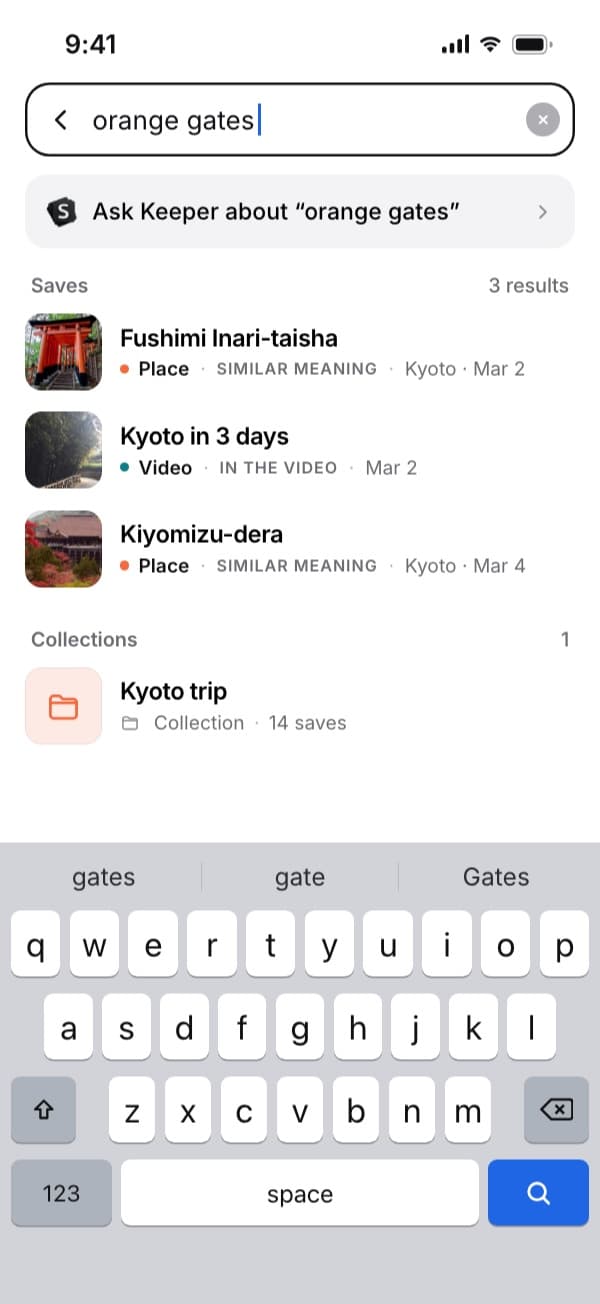
Here "orange gates" finds the Kyoto video by what's said in it. Plus searches by meaning without a monthly limit. Group them by why you saved them
Make collections like Job search, Pitch ideas or Read this weekend. One post can sit in several.
Questions people ask
Where are saved articles on LinkedIn?
In the same place as posts. Open Saved posts and switch to the Articles tab.
Why can't I find Saved items on LinkedIn?
On the app it isn't a tab: tap your profile picture, then Saved posts. In a browser, go straight to linkedin.com/my-items/saved-posts.
Can I search my saved posts on LinkedIn?
No. Saved posts has an All tab and an Articles tab and no search box. Copy the link into SavedIt with a short note, and you can search your note by any word or by meaning.
Is there a limit to how many LinkedIn posts I can save?
LinkedIn doesn't publish one. The practical limit is scrolling a single list with no search.
More guides
Free on iPhone and Android
Keep the posts worth rereading
Paste a LinkedIn link into SavedIt and find it again when you need it.