

How to export your saved Instagram posts
Short answer
Instagram has no export button in Saved. Ask for your data in Accounts Center (Export your information, then Saved, as JSON), and you get a file listing every post you saved.
Updated November 16, 2026 3 min read
Export them from Instagram
This works in the Instagram app and on instagram.com. You only need the Saved part of your data, so the file stays small.
Open Accounts Center
Tap Profile, then Menu, then Accounts Center.
On a computer, click More at the bottom left, then Settings, then Accounts Center. On some accounts it's called Meta Account.
Start an export
Tap Your information and permissions, then Export your information, then Create export.
Pick your Instagram profile, then choose to export to your device.
Choose only Saved
Under the information to include, untick everything except Saved. Set the format to JSON and the date range to All time, then start the export.
Download it when Instagram says it's ready
Instagram lets you know when the file is ready. Come back to Export your information and download it before the link expires.
What the export gives you
- Links, not the posts themselves
- The file lists each saved post as a link with the account name and the date you saved it. The photos and videos stay on Instagram.
- Your collection names come too
- A second file lists your collections and which saves are in each one.
- Deleted posts stop opening
- If a creator deleted or archived a post, its link no longer opens, even though it may still be in the file.
- Nothing you can search
- The JSON file is made for computers. Open it and you get a wall of links with no pictures or captions, so you can't search by what was in the post.
Bring your saved posts into SavedIt, and search them
The export gives you links. SavedIt gives you a library you can use: each post with its picture, the account, and what's in it, so you can find it by what you remember.
On a laptop: Magic Import does it for you
Tap SavedIt extension, then Magic Import, then Open my Instagram saves.
In Chrome, add the SavedIt extension, sign in and press Open my Instagram saves. Magic Import takes you to All posts and starts by itself (if you see your collection tiles instead, choose Import all posts). It scrolls while you watch and brings up to 2,000 at a time, newest first.
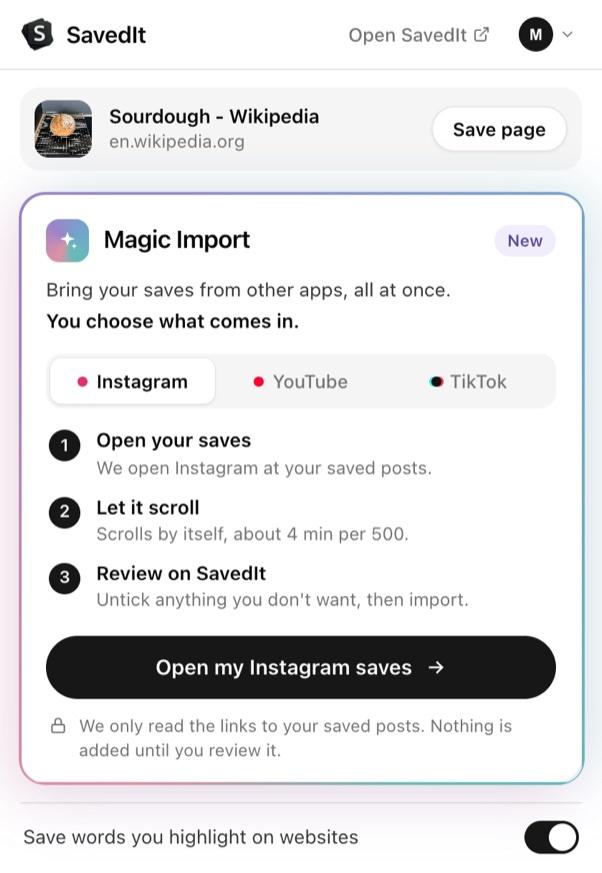
Magic Import in the SavedIt extension for Chrome. Pick what comes in
Your saves show up on SavedIt as a list, newest first. Untick anything you don't want, then import. Nothing is added until you do.
Search the way you remember it
Type "lemon pasta" or "that rooftop bar in Lisbon". SavedIt works through a big import in the background, so it can take a while before every save is searchable. Every save keeps its link, so one tap opens the post on Instagram.
Questions people ask
Can I download all my saved Instagram posts at once?
Not the photos and videos. Instagram's export gives you a link to every saved post. To keep them in one place you can search, bring them into SavedIt with Magic Import.
How long does the Instagram export take?
Often a few hours if you choose only Saved, but Instagram can take longer and tells you when it's ready. Then you have a few days to download it.
Does Magic Import need my Instagram password?
No. It works in your own signed-in Chrome tab and reads only what your Saved page shows: each post's link and its preview. It never sees your password. Be careful with any tool that asks for it.
What if Instagram asks to check it's me during Magic Import?
Magic Import stops and keeps what it found so far. After the time it shows, press Keep going to carry on.
More guides
Free on iPhone and Android
Get your saved posts out of the scroll
Bring every Instagram save into SavedIt and find it by what you remember.