


Read a save in the Reader
Open a saved article and tap Read, next to the blue open key. SavedIt shows a clean copy of the page, just the words in a calm layout, and remembers where you stopped.
At the top, the Reader | Original bar lets you switch to the page itself. A PDF opens as pages, with Pages | Text. Select any words to highlight them and add a note if you like. Your highlights are private to you and wait for you on the save's Notes tab.
Updated October 18, 2026
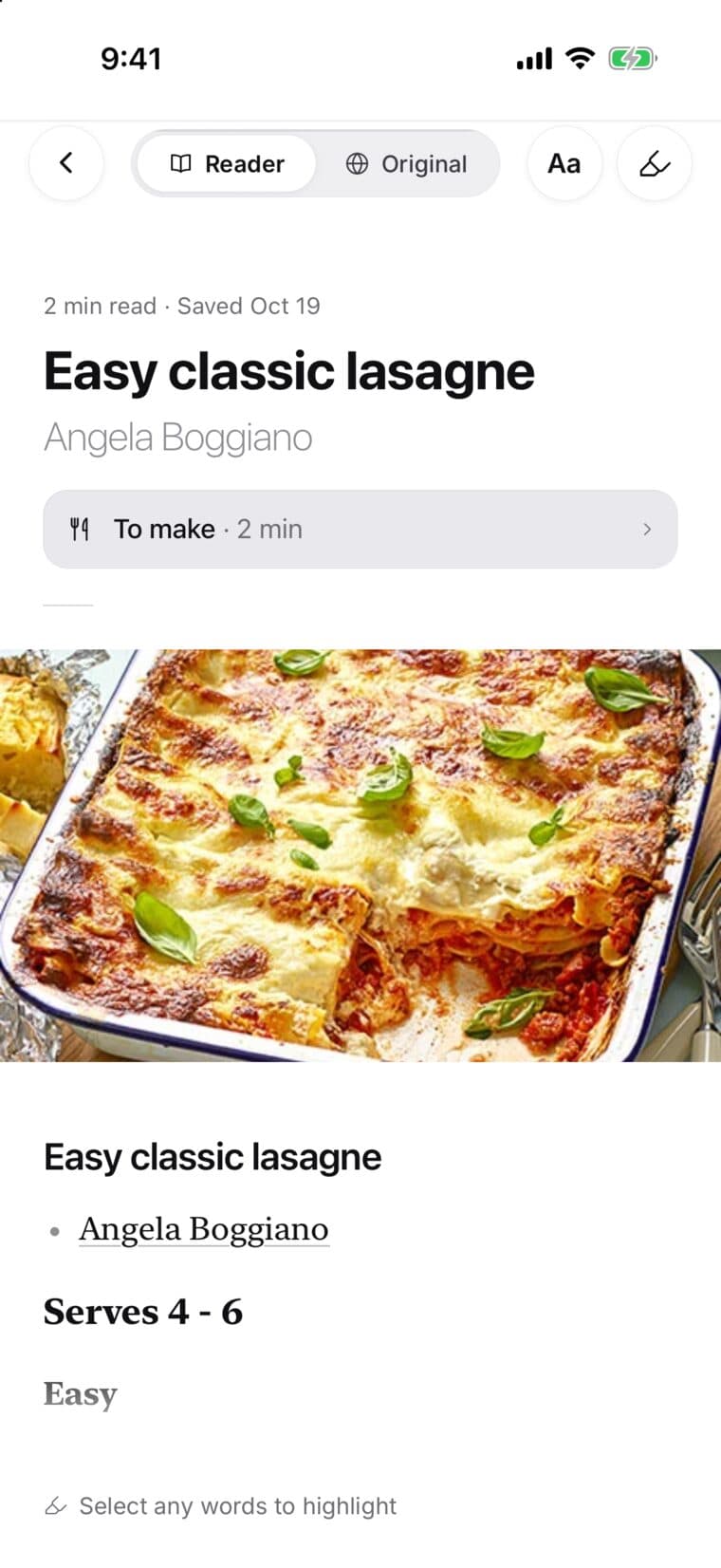
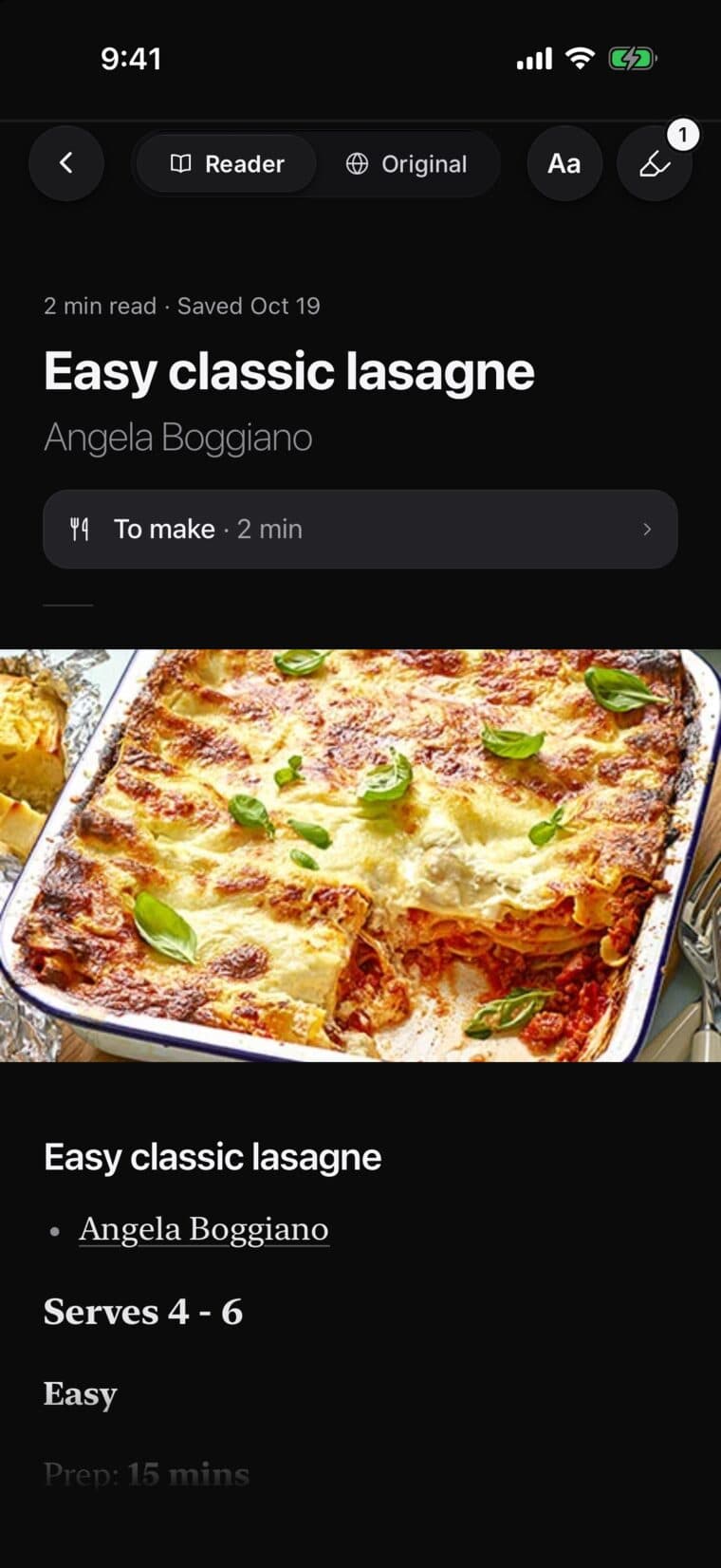
Open a save in the Reader
- Open a save of an article or web page.
- Tap Read, the white key with a book next to the blue open key.
- Tap the back arrow at the top left when you're done.
The key tells you where you are: Read (after the first time, with about how many minutes it takes), Continue with the minutes left, then Read again once you've finished. When you come back, tap Back where you left off, or Start over.
Read shows up on articles and web pages, and on PDFs you saved as a file or as a link straight to a PDF. Videos, posts, places, photos and notes open as they are. If Read isn't there on a PDF, tap Open PDF.
Switch between Reader and Original
- In the Reader, look at the bar at the top. It shows Reader and Original. On a PDF it shows Pages and Text.
- Tap Original to open the page itself in your browser.
- To come back, tap SavedIt at the top left on iPhone, or Back on Android.
Reader is the clean copy. Original is the page on its own site. If a page has no clean copy, Reader is greyed out and Original is the one to use.
Open a PDF as pages
- Open a save of a PDF and tap Read, or tap Open PDF.
- Scroll through the pages. The bar at the top shows Pages and Text.
- Tap Text to read the words of the PDF in the Reader. Tap the search key, Find in PDF, to look for a word.
A PDF you saved as a file, or a link straight to a PDF, opens as pages. To have Read open its words in the Reader instead, tap Text, then Aa. Under Opens as, pick Text. It's set for this save, on this phone.
Text is greyed out when SavedIt can't read the words of this PDF, like scanned pages. A locked PDF says This PDF is locked: tap Open in browser. If a PDF can't open, tap Try again or Open in browser. If SavedIt can't get a PDF link ready within about 30 seconds, it opens the link in your browser.
You can highlight words on the pages too, when Text is available. If SavedIt can't match them, it says so: tap Text and highlight them there. Tap the highlighter key at the top right to see your highlights.
Make the text bigger or smaller
- In the Reader, tap Aa at the top right to open Reading.
- Slide Text size. There are five sizes.
- Pick the Page (Auto, Light, Soft or Dark), the Font (Serif or Sans) and whether Images are shown (Show or Hide), then tap Done.
Until you choose a size, the Reader follows your phone's text size. Auto matches the app's light or dark look. Your choices are kept on this phone.
Highlight and add a note
- Select the words you want to keep.
- Tap Highlight. Or tap Note, write it, and tap Save: the words are highlighted with your note. On Android, choose Highlight or Add note in the menu that appears.
- To change it later, tap the highlight and choose Add note or Edit note, Copy, or Delete.
Tap the highlighter key at the top right of the Reader to see every highlight in reading order and jump back to one. Only you can see your highlights and their notes.
Just deleted one by mistake? Tap Undo within a few seconds.
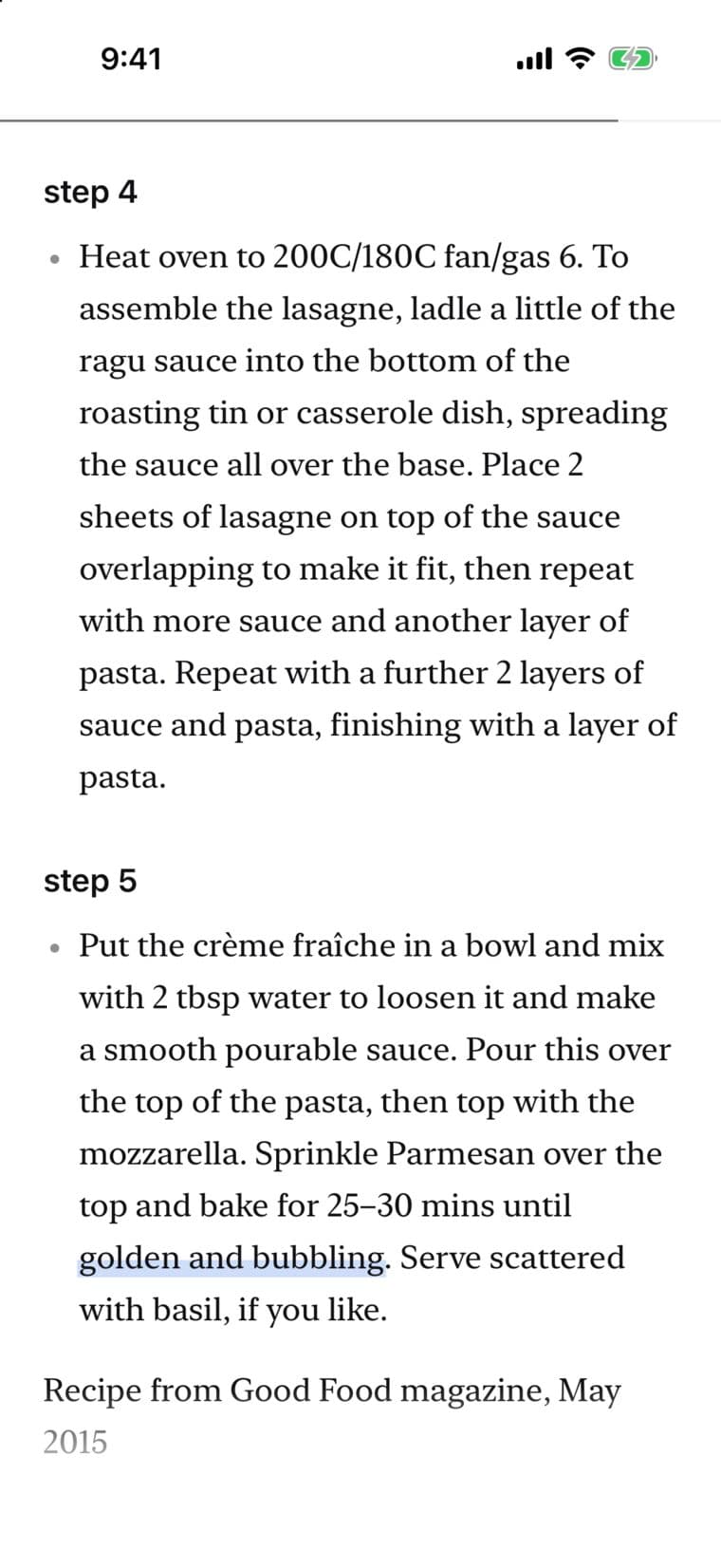
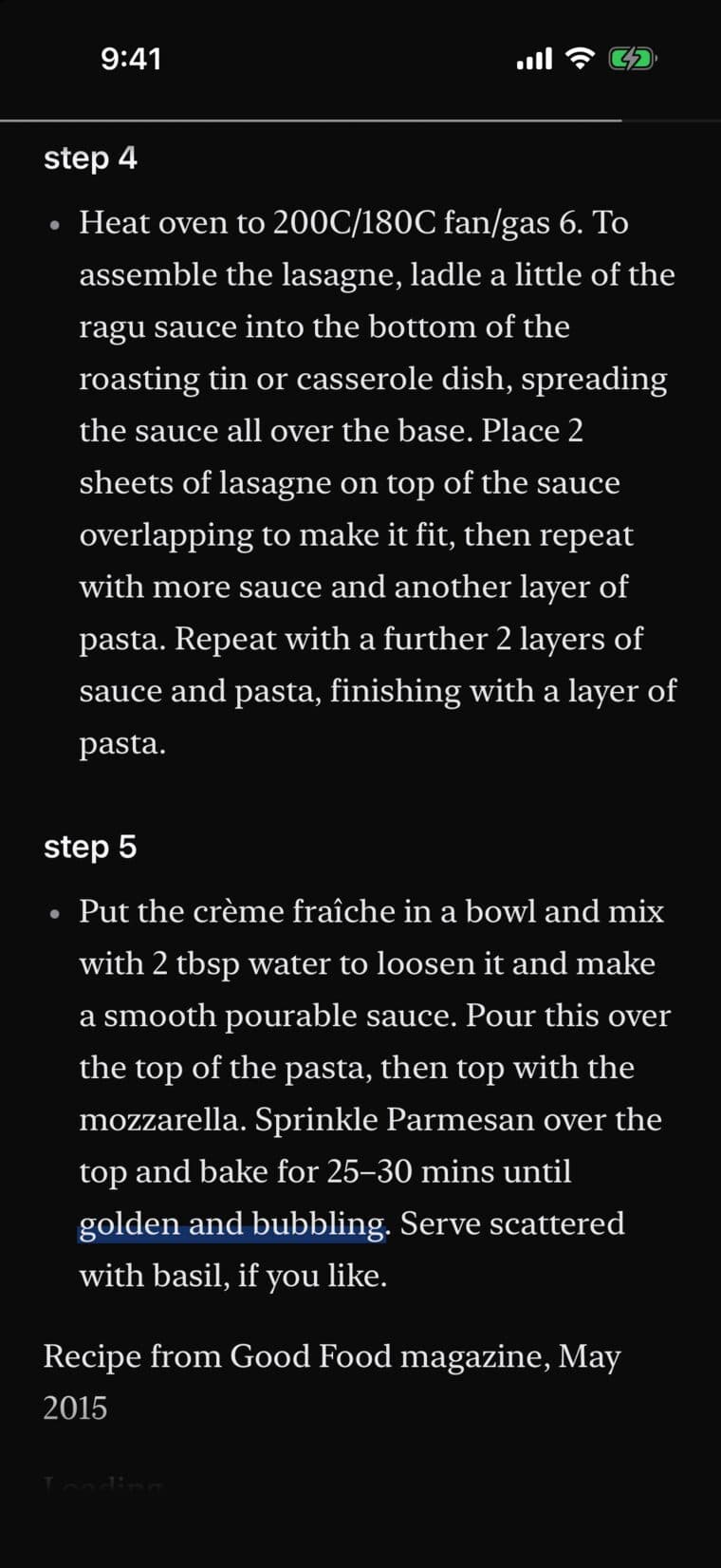
When a page won't open here
Some pages can't open in the Reader, like pages behind a sign-in or a subscription, or sites that don't allow a reading view. SavedIt says so and shows Open link, so you can read it on the site. Your save stays in your library.
The Reader needs a connection. If you're offline or the site is slow, try again in a moment. Your highlights are kept.
Go to the original
Tap Original in the bar at the top of the Reader, or the blue open key on the save, to open the page itself.