


Save a screenshot, a PDF or some text
Open the screenshot, PDF or text, tap Share, then SavedIt. It saves the same way a link does.
It lands in your library next to your links, and the file is stored privately in your account.
Updated October 19, 2026
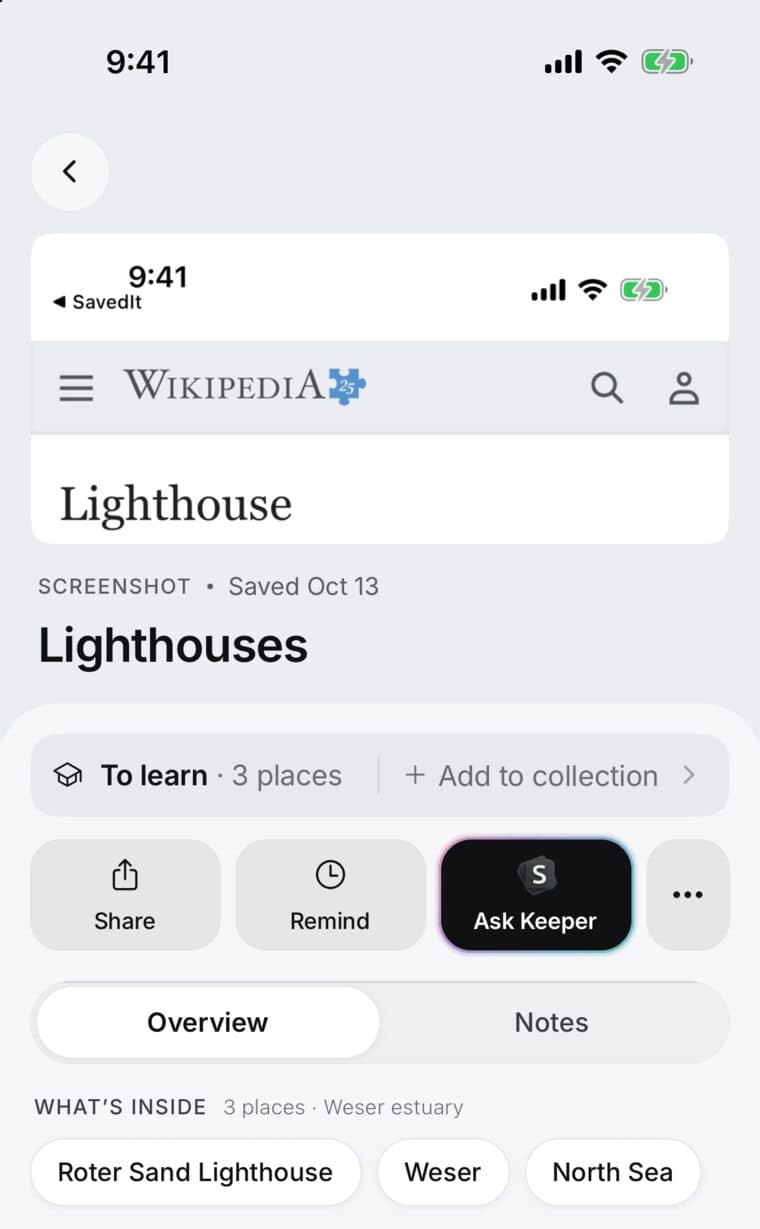
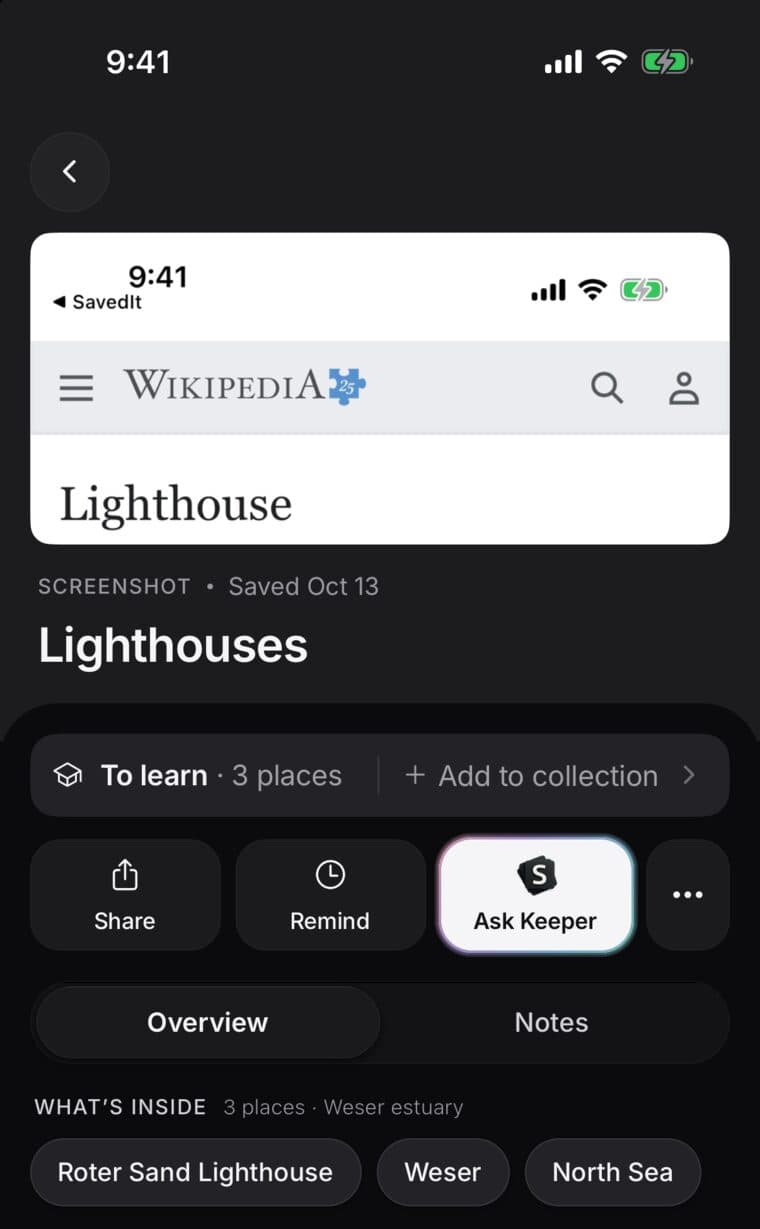
Save one
- Open the screenshot or photo in Photos, the PDF in Files, or select some text.
- Tap Share, then SavedIt.
- It saves after the countdown, or tap Save now.
Share one file at a time. Several files shared together aren't saved.
What you get
- A screenshot or photo: SavedIt reads the picture to work out what it shows, like a recipe, a place or a product, so you can find it by what it is.
- A PDF: tap Read to open it as pages. Tap Text at the top to read just its words.
- Text: the words are kept as you shared them.
Sizes and room
- Pictures up to 8 MB, PDFs up to 10 MB and text up to 1 MB. Anything bigger gets a message saying so, and nothing is saved.
- Files use your room: 1 GB on Free and 10 GB with Plus. Links never count.
- Share the same screenshot twice and you still have one save.
Private to you
Your files are stored privately in your account, and SavedIt uses them only to show and understand your saves.
Delete a file save and it waits in Recently deleted for 30 days, like any save.