


SavedIt Plus: start, cancel, or restore
Open Settings and tap See SavedIt Plus. If your app store offers you a free trial, the screen says how long it lasts before you confirm anything.
To cancel, open Settings, tap Manage or cancel, and finish in the App Store or Google Play. Plus stays on until the date shown, and every save stays in your library.
Updated October 19, 2026
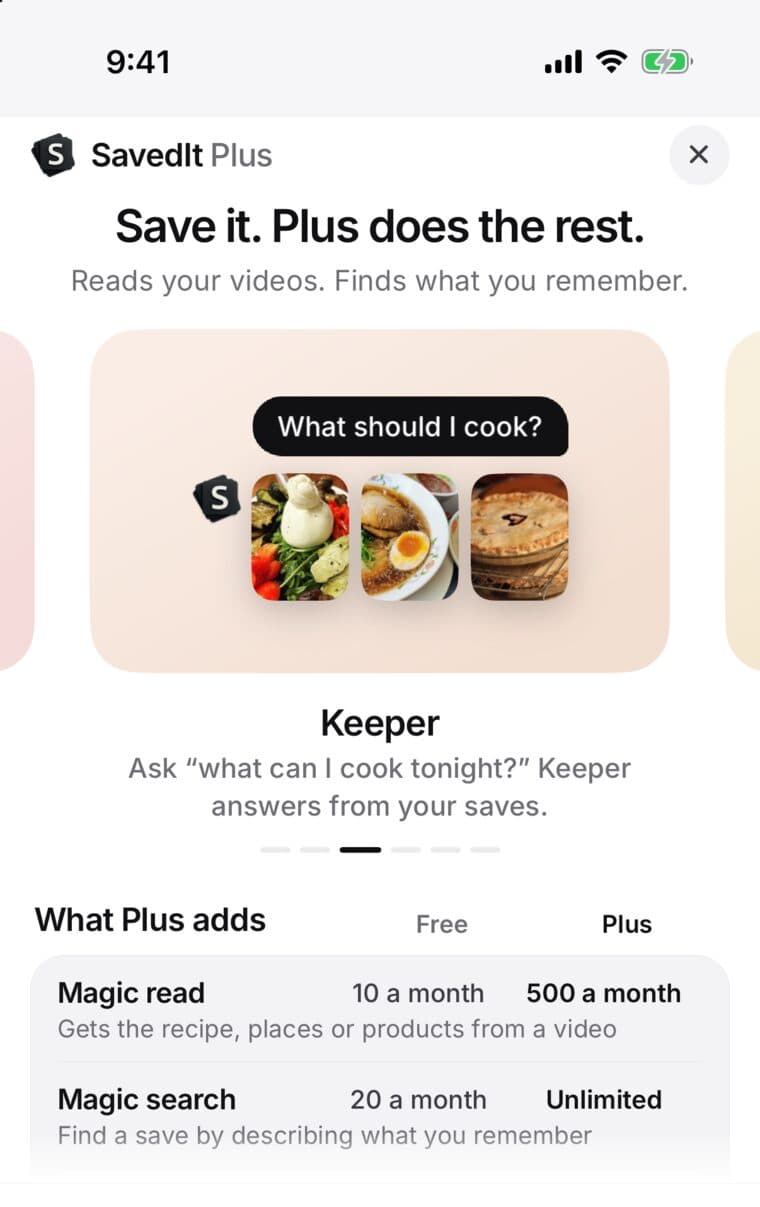
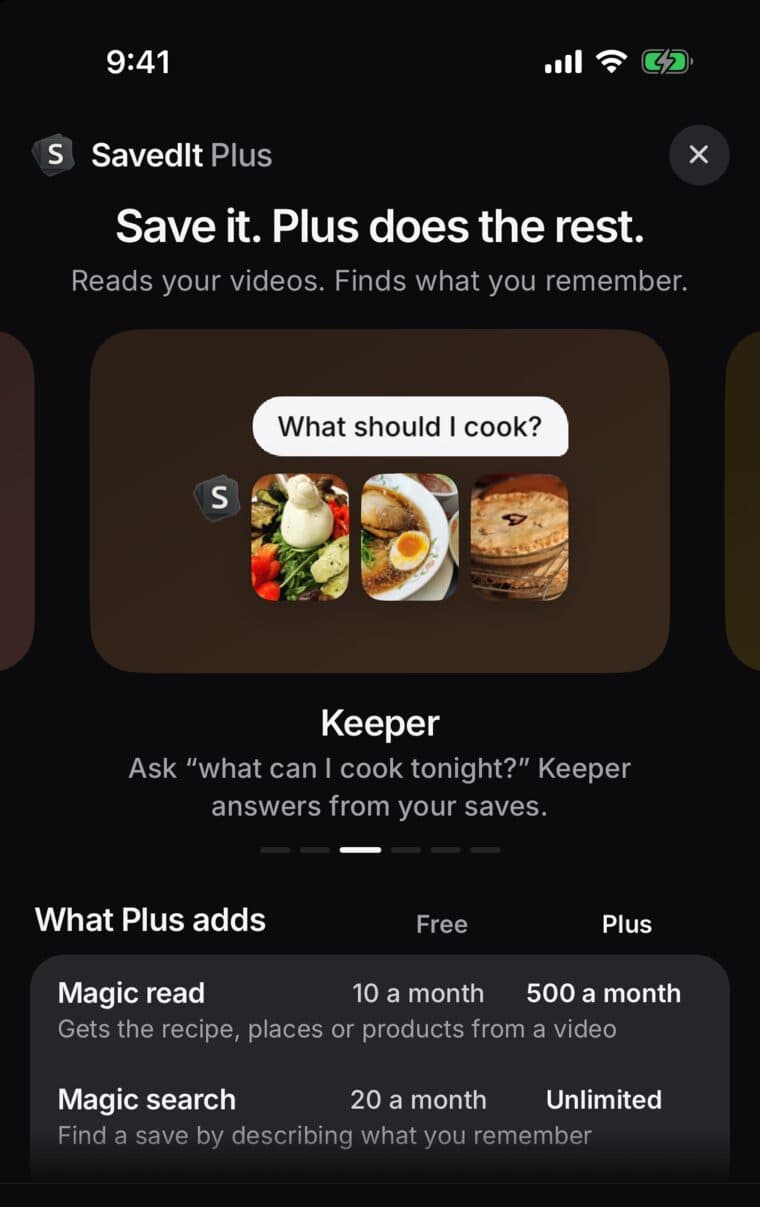
Start Plus
- Open Settings and tap See SavedIt Plus at the top.
- Pick a yearly or monthly plan. The price comes from your app store in your currency.
- Tap the button at the bottom to start a free trial or subscribe, and confirm with your App Store or Google Play account.
Your app store decides whether your account can get a free trial, and the screen shows how long it is. SavedIt reminds you 2 days before the first charge, by email and with a notification if you allow them.
You can buy Plus in the iPhone and Android apps, or on the website (see Bought Plus on the website below).
What Plus adds
During a free trial, Think deeper is 30 a month, Magic read 30 a month, and Import 10,000 saves a month. Everything else matches Plus.
Saving links is never limited. Searching your exact words, collections, sharing, planning with friends, connecting your AI, and opening your library on any device are free for everyone.
- Keeper: ask about your saves. Planning dinner? Ask and get the recipes you saved. 300 asks a month instead of 5.
- Think deeper: for a big question, Keeper reads more of your saves first. 60 a month (not in Free).
- Magic read: save a travel video or photo post and get the places in it. 500 a month instead of 10.
- Magic search: type “hotel with the pool”, tap Search by meaning, and SavedIt finds it. Unlimited instead of 20 searches a month.
- Import: bring in years of saves from other apps. Every save comes in, and up to 20,000 a month get made smart (their places, recipes, and why you saved them) instead of up to 900.
- More room: 10 GB for screenshots, photos, and files instead of 1 GB. All private.
- Auto-file: each new save files itself into the right collection. On Free, SavedIt still suggests collections and you choose.
- Places map: every place you saved, on one map. The place on each save stays free.
Cancel on iPhone
- Open Settings in SavedIt and tap Manage or cancel. This opens Your Plus.
- Tap Manage or cancel again (Manage or cancel trial during a trial). SavedIt may ask why you're leaving, which you can skip, and may show one offer to stay. Tap No thanks, cancel to go on.
- Your App Store subscription opens. Tap Cancel Subscription.
You can also cancel without opening SavedIt: open the iPhone Settings app, tap your name, then Subscriptions.
Cancel on Android
- Open Settings in SavedIt and tap Manage or cancel. This opens Your Plus.
- Tap Manage or cancel again (Manage or cancel trial during a trial). SavedIt may ask why you're leaving; you can skip it.
- Your Google Play subscription opens. Tap Cancel subscription.
You can also cancel from the Play Store app: tap your profile picture, then Payments & subscriptions, then Subscriptions.
Bought Plus on the other kind of phone? Manage or cancel opens that store's subscription page instead.
Bought Plus on the website
- Sign in at saveditapp.com and open Your Plus.
- Pick a yearly or monthly plan, tap the button at the bottom and pay on the checkout page.
- Plus turns on for your account: on the web, and in the app on any phone where you sign in.
To cancel, tap Manage or cancel in Your Plus on the website, or in Settings in the app. Your billing page opens, and you cancel there. Plus stays on until the date shown.
Your Plus has a Receipt link to your charges. To ask about a refund, email contact@saveditapp.com from the address on your SavedIt account.
Cancel Plus before you delete your SavedIt account.
What happens after you cancel
Plus stays on until the end of the period you paid for. Your Plus then says “Ends <date> · won’t renew”. During a trial, cancel at least a day before the charge date and you won't be charged.
When Plus ends, nothing is deleted. Every save, note, tag, collection, and summary SavedIt already made stays in your library, and you keep saving without limits. Keeper, Magic read, Magic search, Import, and storage go back to the free amounts, and Think deeper, Auto-file and the Places map stop. The place on each save stays. Saves Auto-file already filed stay in their collections. Keeper stops keeping new notes about you, and the notes it already kept stay in Settings, then About you.
Over 1 GB of screenshots, photos, and files? Links still save, and deleting files makes room for new ones.
Restore Plus on a new phone
- Sign in to SavedIt with the same account. Plus normally comes back on its own.
- If it doesn't, make sure your phone is signed in to the App Store or Google Play account that paid, then open Settings and tap See SavedIt Plus.
- Tap Restore at the bottom of the screen.
When the store finds your purchase, Plus turns back on and your library is just as you left it. If you see No subscription found, check you're signed in to the store account that paid. Already on Plus? Restore purchases is also on Your Plus.
Plus belongs to your SavedIt account, not to one phone, so it comes with you when you sign in on another phone, iPhone or Android.
Receipts, refunds, and billing problems
In the app, Apple or Google handles the payment, and refund requests go to that store. On the website, Stripe handles it. After your first charge, Your Plus has a Receipt link to your purchase history.
If a payment doesn't go through, Your Plus says so and shows Fix payment, which opens your store's subscription page, or your billing page if you bought on the website, so you can fix it.
Deleting your SavedIt account does not cancel the subscription in the store, so cancel it there first. For a website purchase, cancel in Your Plus first.
Still stuck? Email contact@saveditapp.com from the address on your SavedIt account. Never include card details or your password.