


Save from your computer
Add the SavedIt extension to Chrome or Firefox. On any page, click SavedIt in your toolbar, then Save to SavedIt.
No extension? Open the SavedIt web app, click the + button, choose Save a link and paste. It's the same library as on your phone.
Updated October 19, 2026
Add the extension
- Open SavedIt for Chrome or SavedIt for Firefox below and add it to your browser.
- In Chrome, click the puzzle piece in the toolbar and pin SavedIt so it stays in view.
- Click SavedIt and sign in with the same account you use on your phone.
The Chrome version also works in Edge, Brave, Arc and Opera.
Save a page
- On the page, click SavedIt in your toolbar. In Chrome you can also press Cmd+Shift+S on a Mac (Ctrl+Shift+S on Windows).
- Pick a collection, or add a note or tags, if you like.
- Click Save to SavedIt.
The page is in your library on your phone and on the web straight away, and SavedIt writes out the useful part just as it does for a phone save.
Use the web app
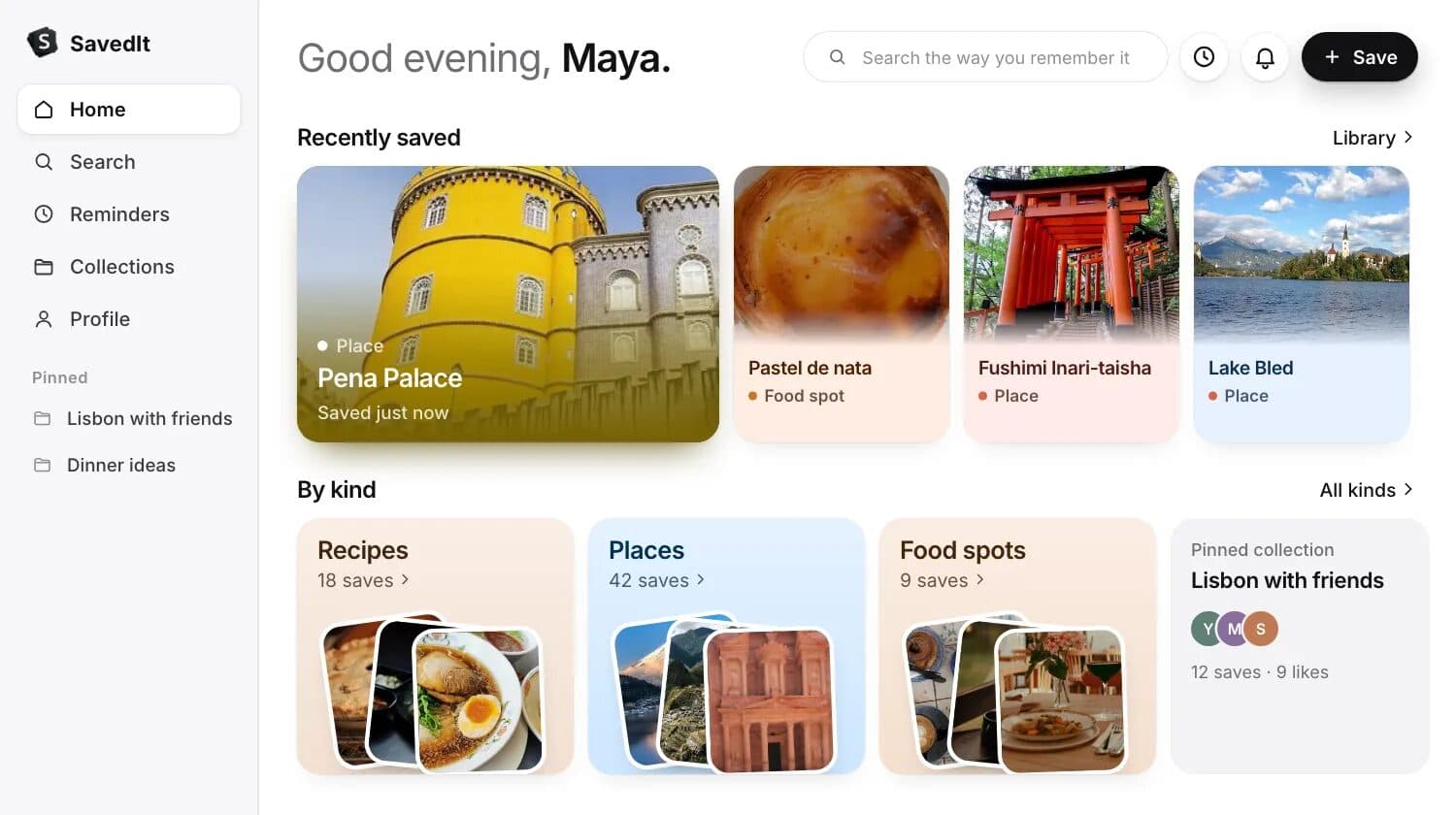
Sign in at saveditapp.com to open your library in any browser, with the same saves, collections and reminders as your phone.
- Save a link: click the + button and choose Save a link, then paste.
- Faster: with a link copied, press Cmd+V on a Mac (Ctrl+V on Windows) anywhere on Home. It saves straight away, with Undo.
- Search: press Cmd+K on a Mac (Ctrl+K on Windows and Linux) on any page.
- Import: click the + button and choose Import saves to bring in a file from another app.
If it won't save
Check you're signed in to the right account in the extension, and refresh the page after installing or updating it. Browser settings pages and files on your computer can't be saved.