


Start here: your first save
Find something you want to keep, like a recipe video or a place, then tap Share and choose SavedIt. That's your first save.
SavedIt reads it and writes out the useful part, like the recipe or the places. Find it again on Home, with Search, or by asking Keeper.
Updated October 19, 2026
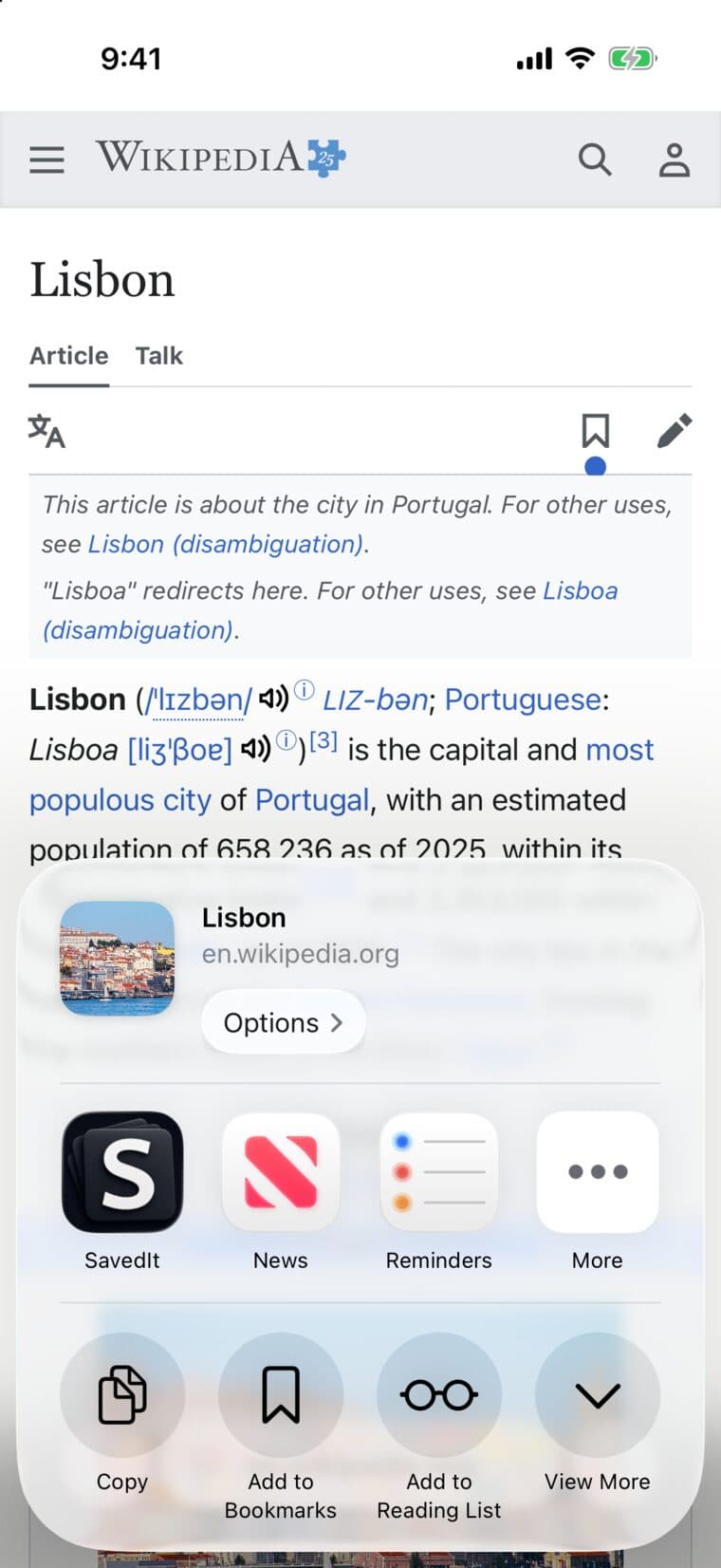
Save something
- Open a post, video, page or place you want to keep, in Instagram, TikTok, YouTube, Safari, Chrome or any other app.
- Tap Share, then SavedIt. On iPhone, if it isn't in the row of apps, swipe to the end, tap More and add SavedIt to your Favorites.
- It saves after a 3-second countdown. You don't have to open SavedIt.
Already copied a link? Open SavedIt, tap the + button and choose Save a link.
See what SavedIt writes
Open the save. SavedIt writes out what matters: the ingredients and steps from a cooking video, the places from a travel video, or a few key points from anything else.
It may also note why you kept it, like To make or To go. Tap that line under the title to change it.
For a video or a photo post, SavedIt reads what's in it. Free reads 10 a month, and the Plus screen calls it Magic read.
Find it again
- Home: your newest saves are at the top, under Recently saved.
- Search: tap the round magnifying glass and type a word you remember. Can't remember the words? Describe it and tap Search by meaning.
- Collections: keep saves for a trip, a plan or a room together. Tap Collections at the bottom.
Ask Keeper
Tap the Keeper key next to Search and ask in your own words, like “what can I cook tonight?”. Keeper answers from your saves and shows which ones it used. Free includes 5 asks a month.
Plus and the free trial
After your first save, SavedIt shows SavedIt Plus once. If your app store offers you a free trial, the screen says how long it lasts and the price after it, before you confirm anything.
You don't need Plus to save. Close the screen with the X to stay on Free, and start Plus later from Settings if you want it.