
Save from any app
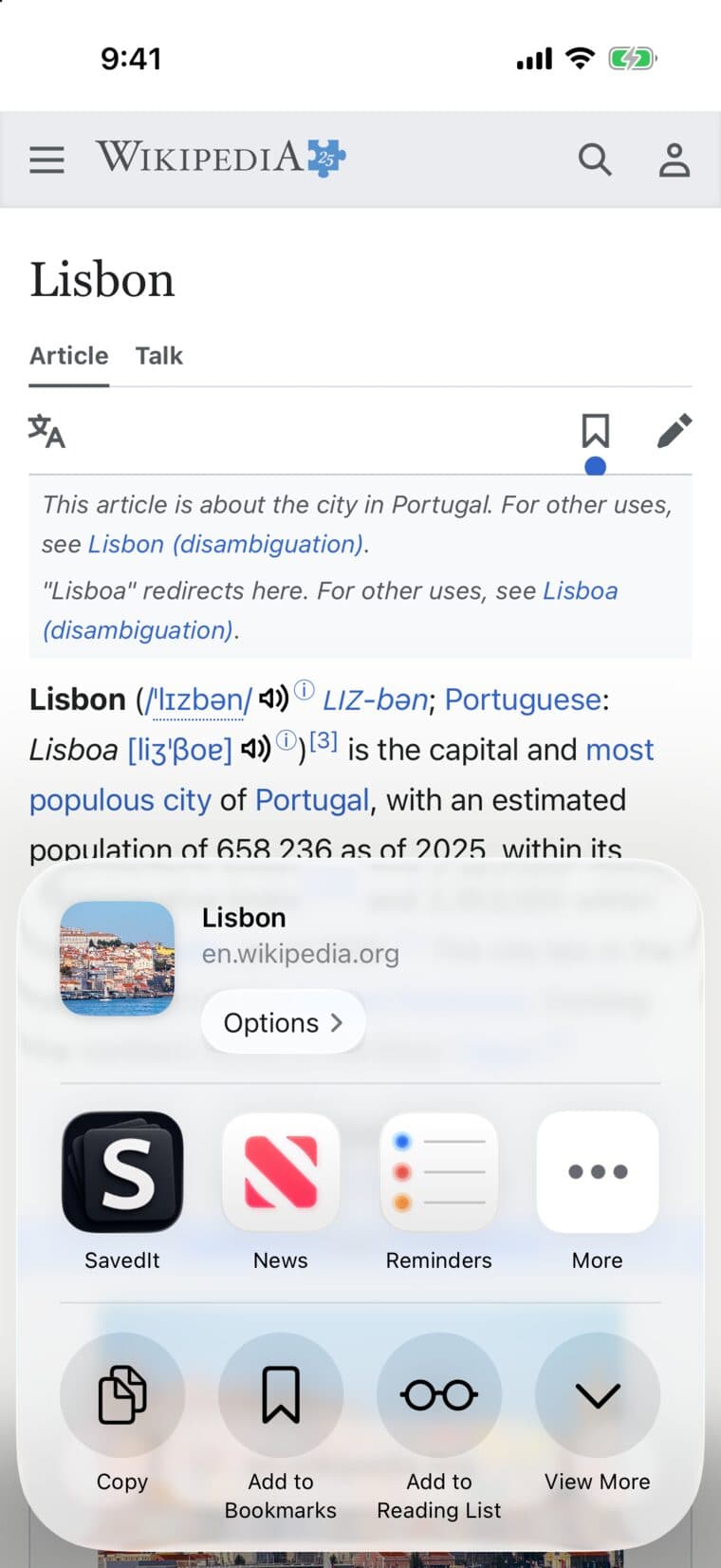
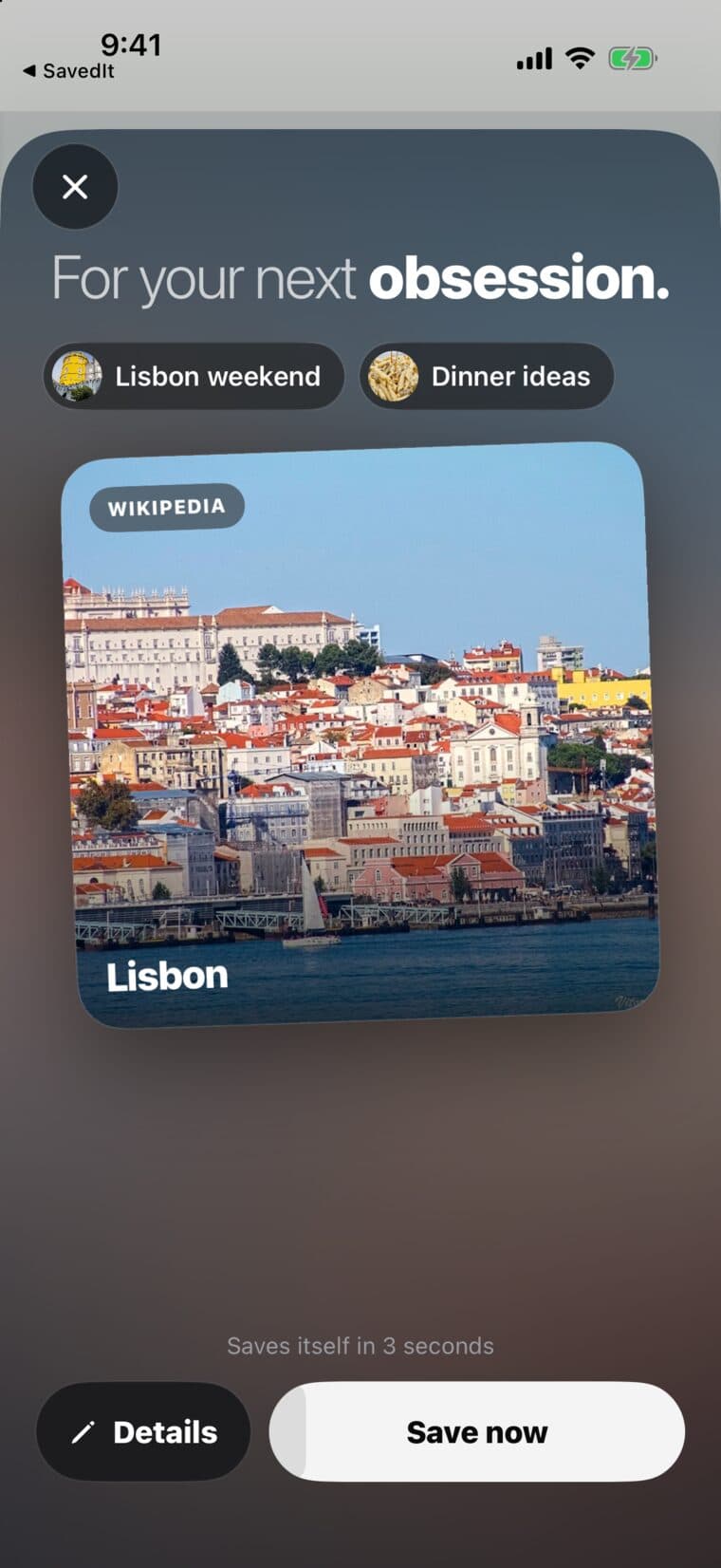
Tap Share in any app, then tap SavedIt. It saves itself after a 3-second countdown, and you don't have to open SavedIt.
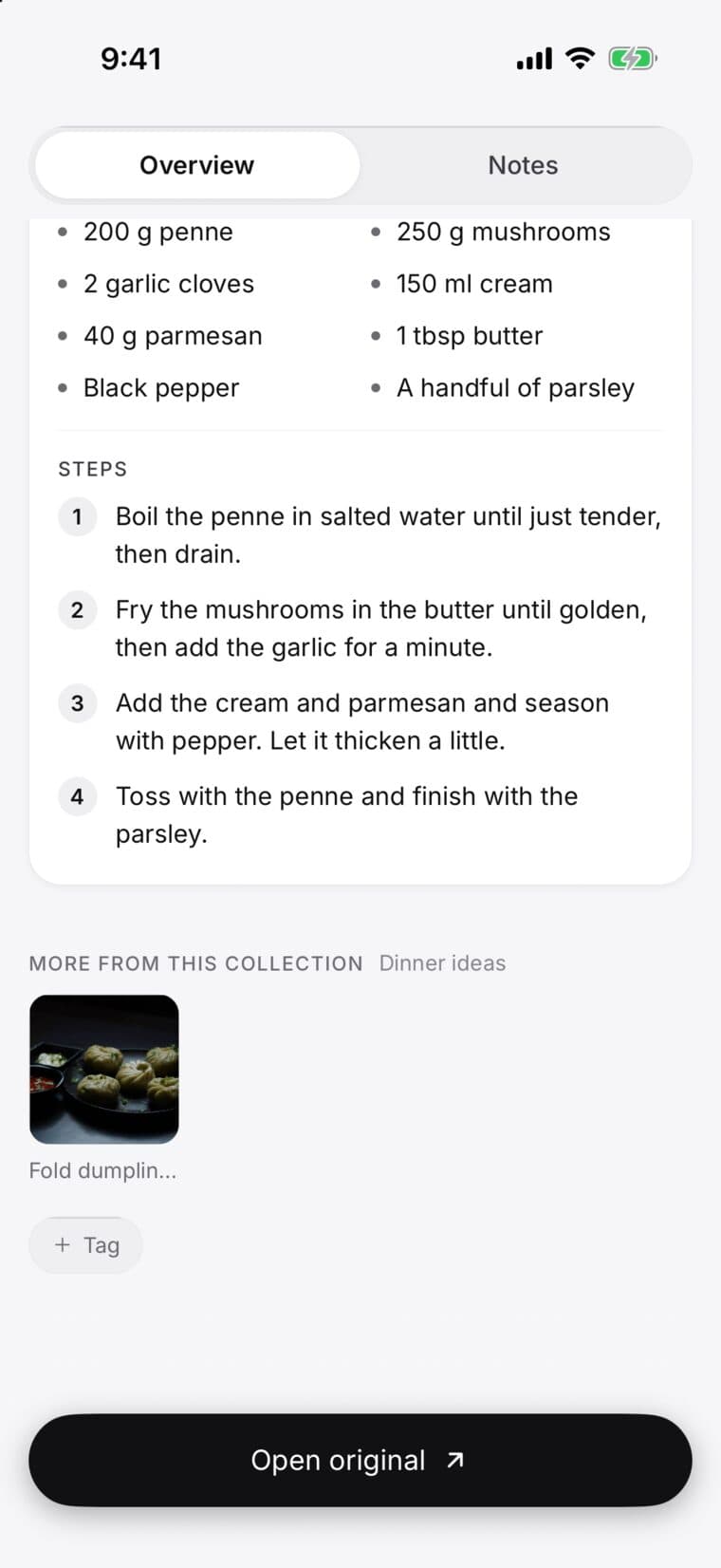
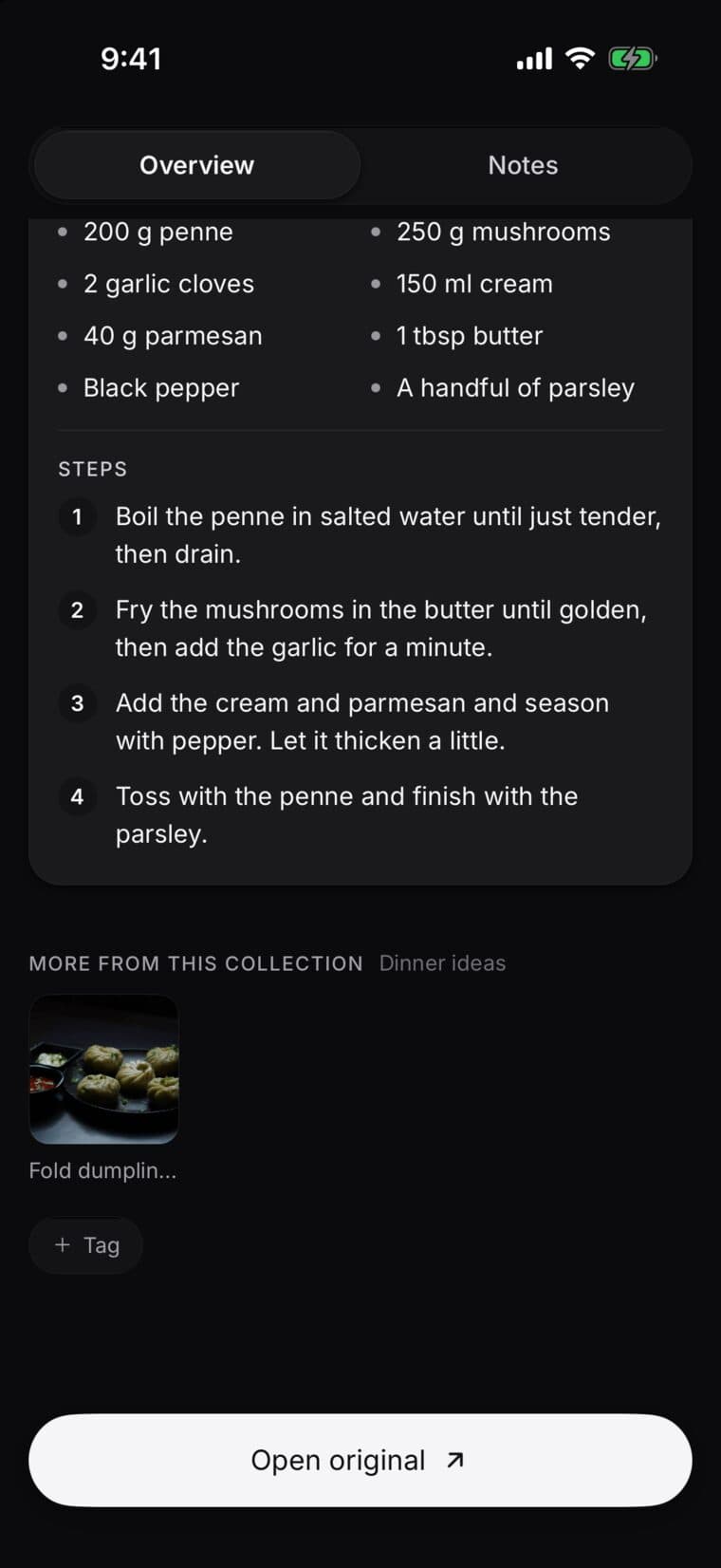
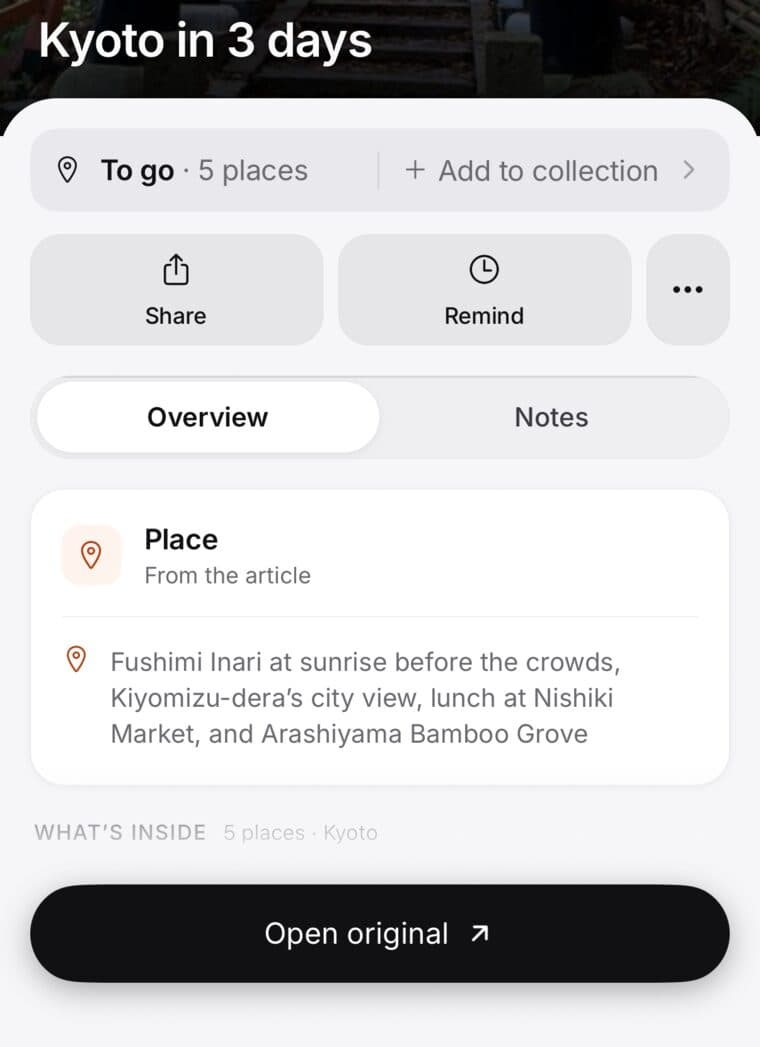
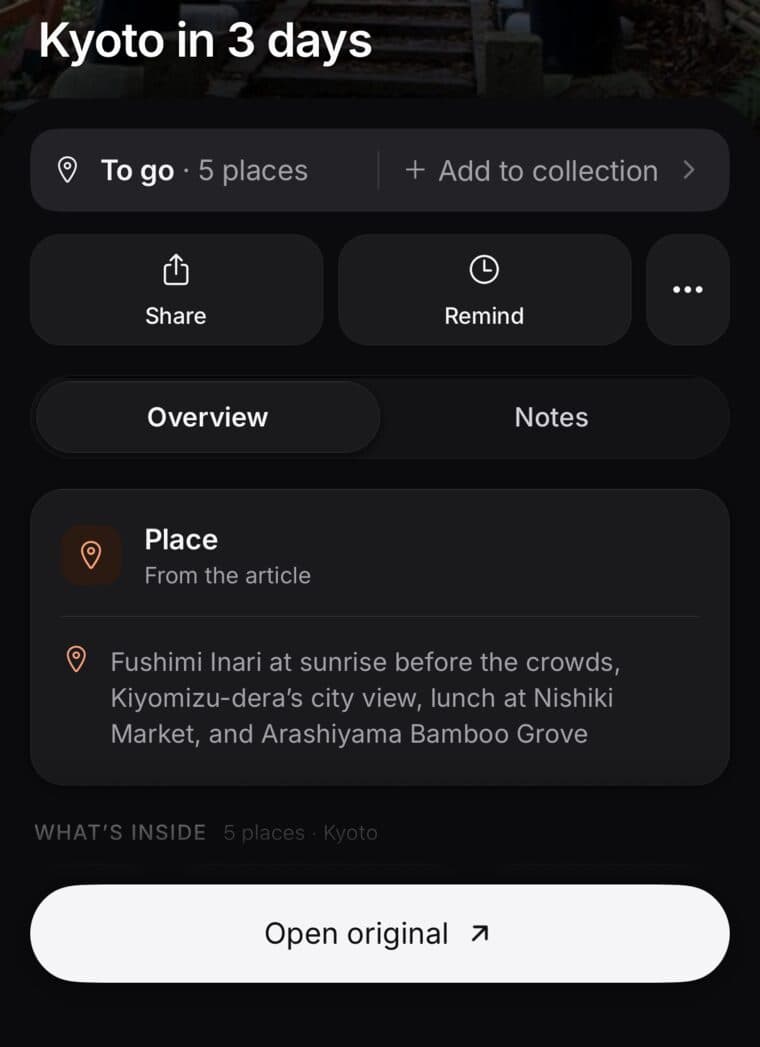
Then SavedIt reads what you kept and writes down the useful part: the recipe from a cooking video, the place from a map link, the steps from a how-to.
Updated October 19, 2026

On iPhone or iPad
- Open the post, video, page or place you want to keep.
- Tap Share, then tap SavedIt in the row of apps.
- Wait 3 seconds and it saves, or tap Save now. Want to add a collection, reminder, note or tags first? Tap Details, then Save.
- You'll see Saved to SavedIt.
In Instagram and TikTok, Share opens their own menu first. Tap Share to or More at the end of that row to reach the iPhone share menu.
Don't see SavedIt? Swipe the row of apps to the end, tap More, then Edit, and add SavedIt to your Favorites. It stays at the front after that.
On Android
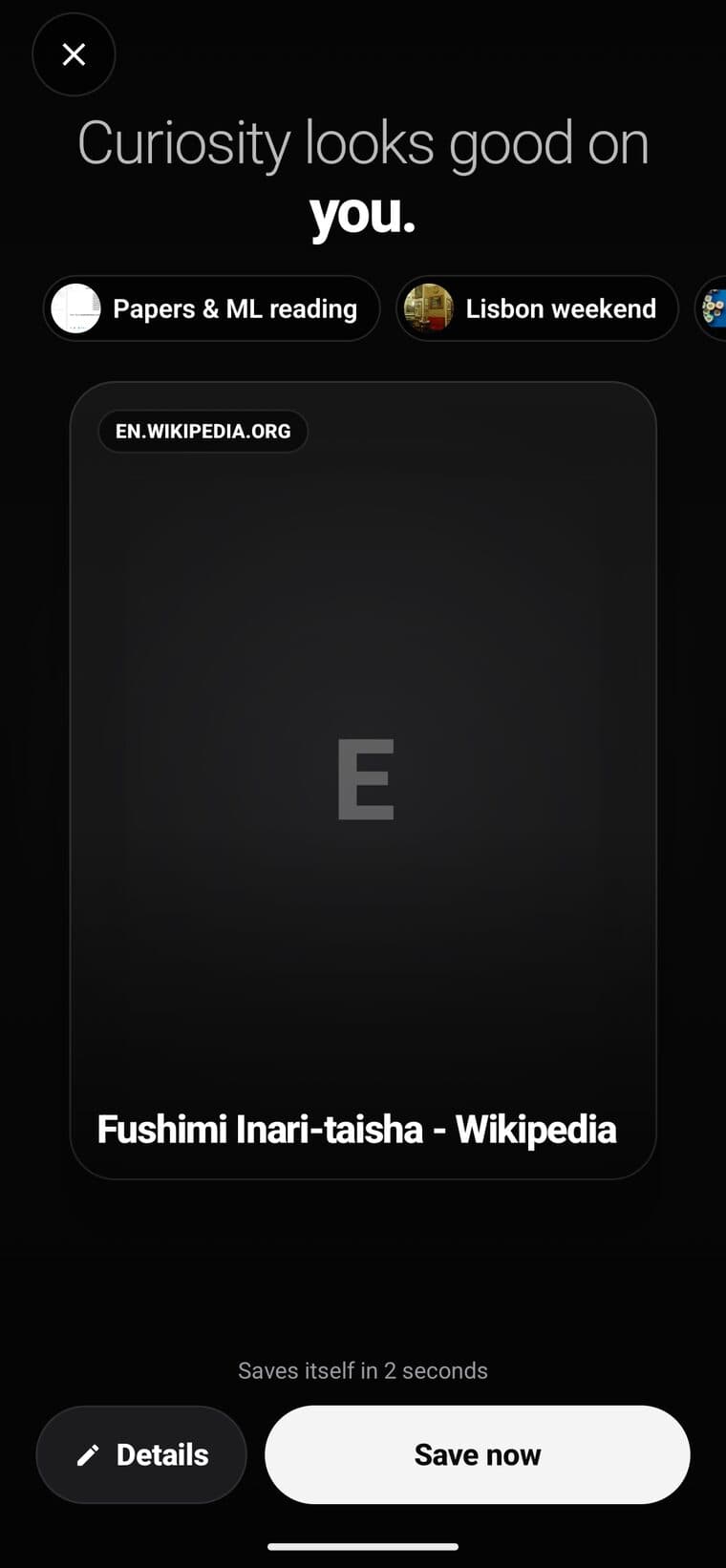
- Tap Share in any app.
- Choose SavedIt.
- Wait 3 seconds and it saves, or tap Save now. Tap Details first to add a collection, reminder, note or tags.
You'll see Saved to SavedIt, and the save is in your library.
Don't see SavedIt? Open SavedIt once after installing it, then share again.
On your computer
Add the SavedIt extension to Chrome or Firefox. It also works in Edge, Brave, Arc and Opera. On any page, click SavedIt in your toolbar, then Save. In Chrome, pin it from the puzzle-piece menu first so it stays in view.
Screenshots, PDFs and text
Share a screenshot, a photo, a PDF or some text the same way: tap Share, then SavedIt.
Already have the link?
Copy it, open SavedIt, tap the + button on Home, choose Save a link and paste.
What you get
Then the recipe, the place or the steps are written out under the save, so you don't have to scrub through the video again.